Changelog

Follow new updates and improvements to SurroundR.

Your look, your win, your AI assistant
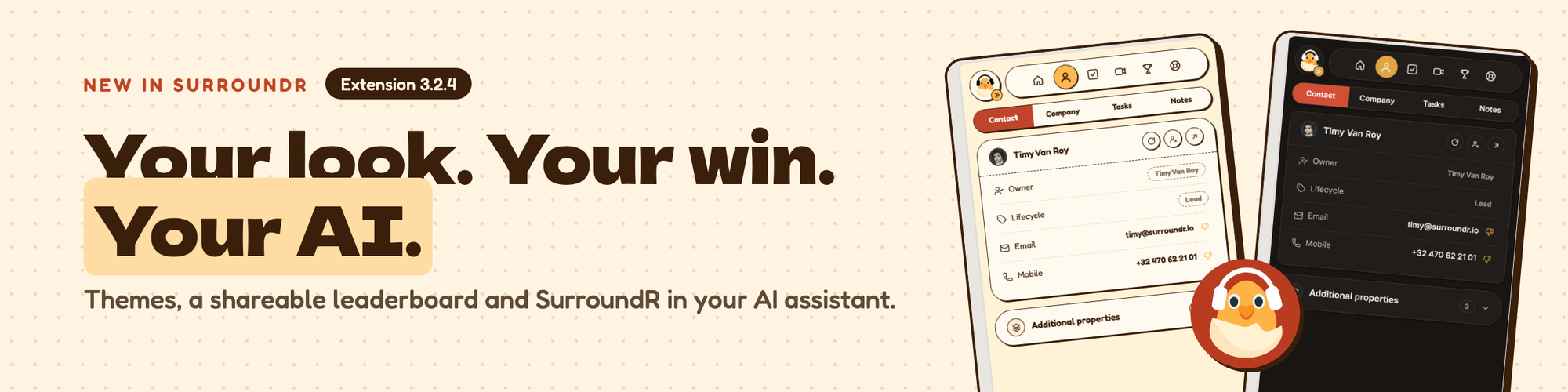
Make SurroundR look the way you like, share your leaderboard wins on LinkedIn, and ask your AI assistant about your contacts.

Key points

  • Themes: pick from five looks for the web app and the extension. Your choice follows you everywhere.

  • Public leaderboard: see who is on top this week, share your rank and post your win in one click.

  • AI assistants: connect SurroundR to Claude, ChatGPT, Cursor or VS Code. No API key needed.

Pick your look

SurroundR now comes in five themes: Classic, Soft, Clean, Slate and Dark. Classic is the look you know. Soft and Clean are lighter, with thinner lines. Slate is cool grey and flat. Dark is easy on the eyes at night.
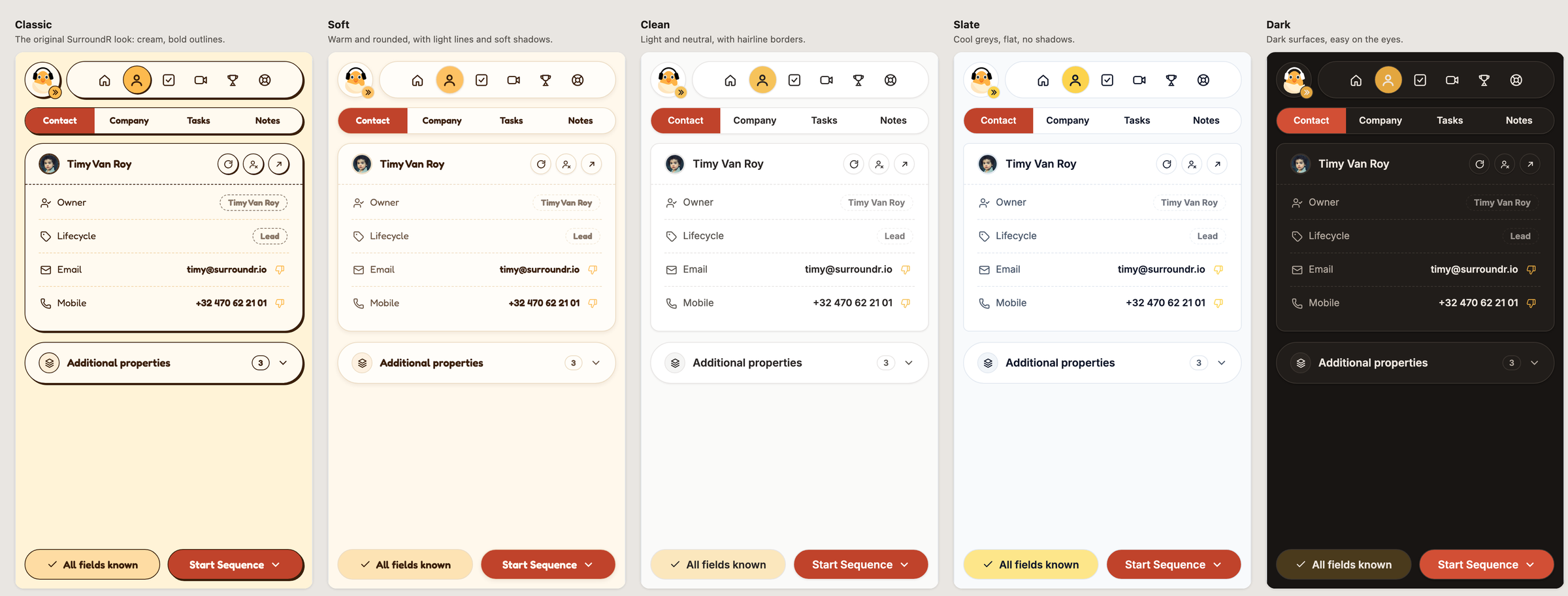
The side panel in all five themes

In the extension: open the SurroundR side panel, go to Settings and pick a theme in the Appearance card. The panel changes right away.
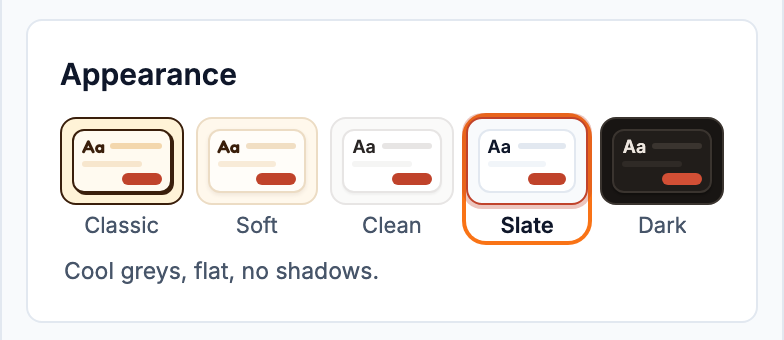
Appearance in the side panel settings

In the web app: click Appearance at the bottom of the menu on the left.
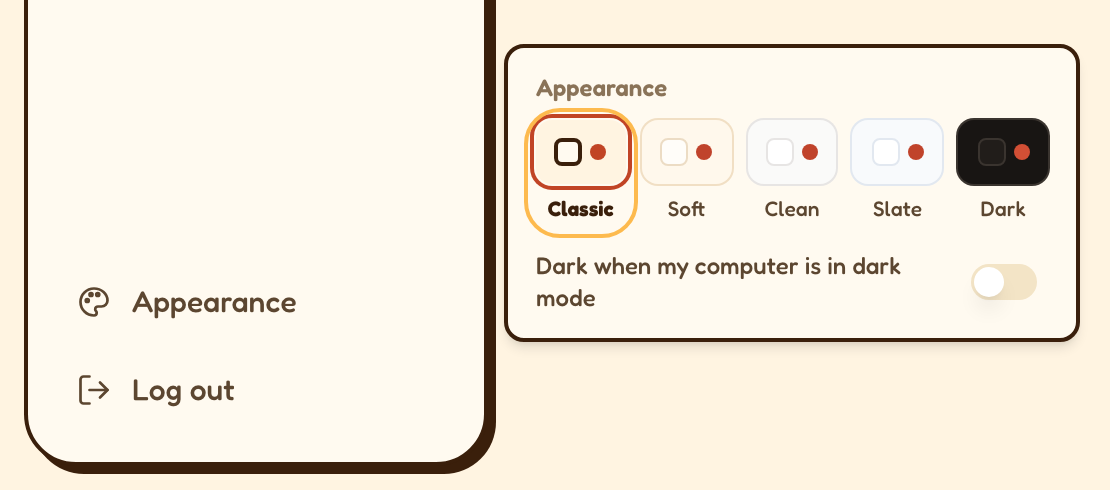
Appearance in the web app menu

Your theme is saved to your account, so the web app and the extension always match. Turn on "Dark when my computer is in dark mode" to switch with your computer.

The web app also has a new menu on the left. Fold it to icons with ⌘B, and press ⌘K to search pages, settings and contacts.

Share your win on the public leaderboard

The leaderboard shows who scored highest with SurroundR this week, month or quarter. Switch between People, Companies and Awards. Click a company to see only its people.
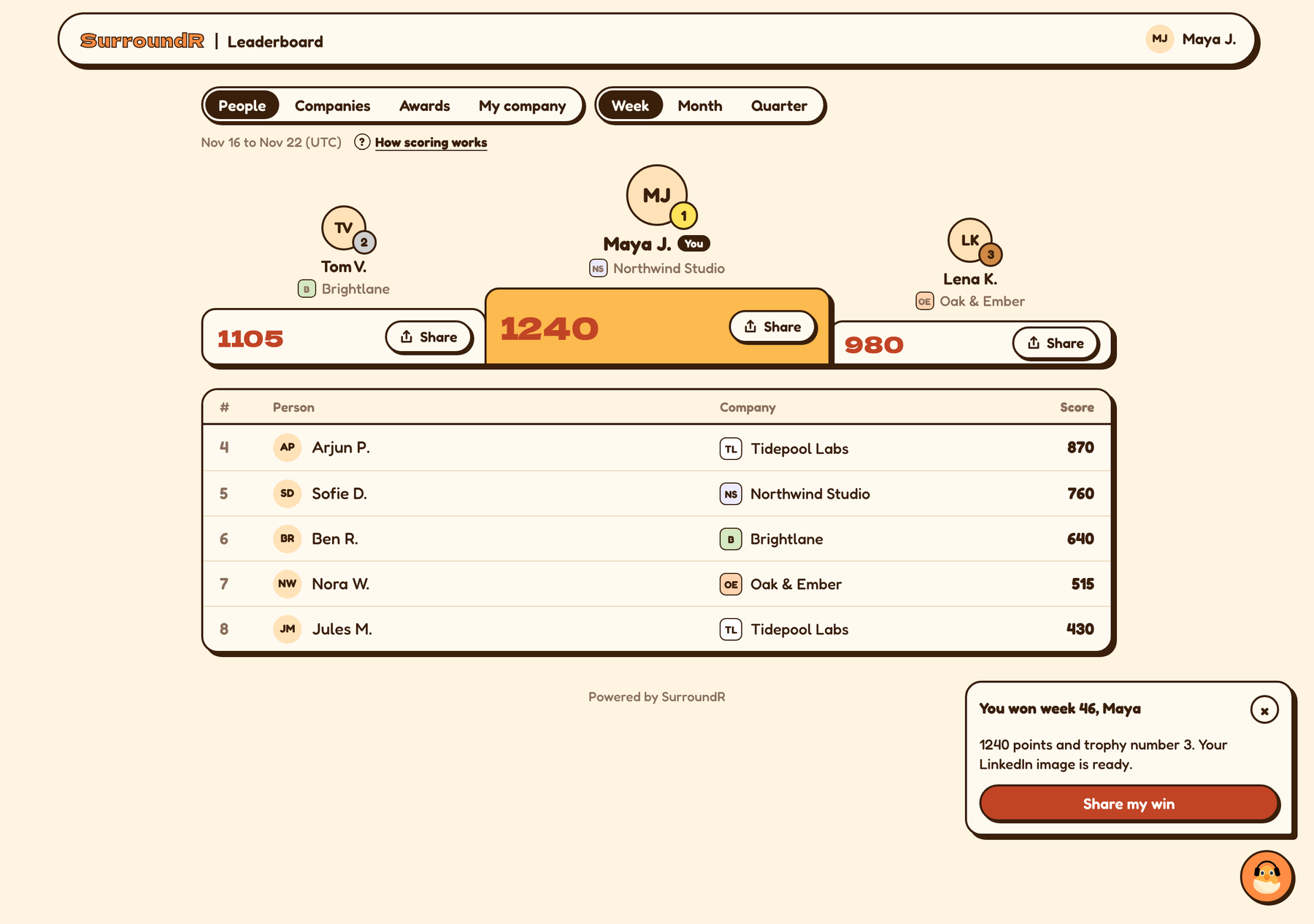
The public leaderboard

The link in your address bar is the share link. It keeps the view, the period and the company you picked.

Made the top 3 or won an award? Every Monday you get a message and an email. Click Share my win to get a ready-made LinkedIn image. Post on LinkedIn saves the image, copies the text and opens LinkedIn for you.
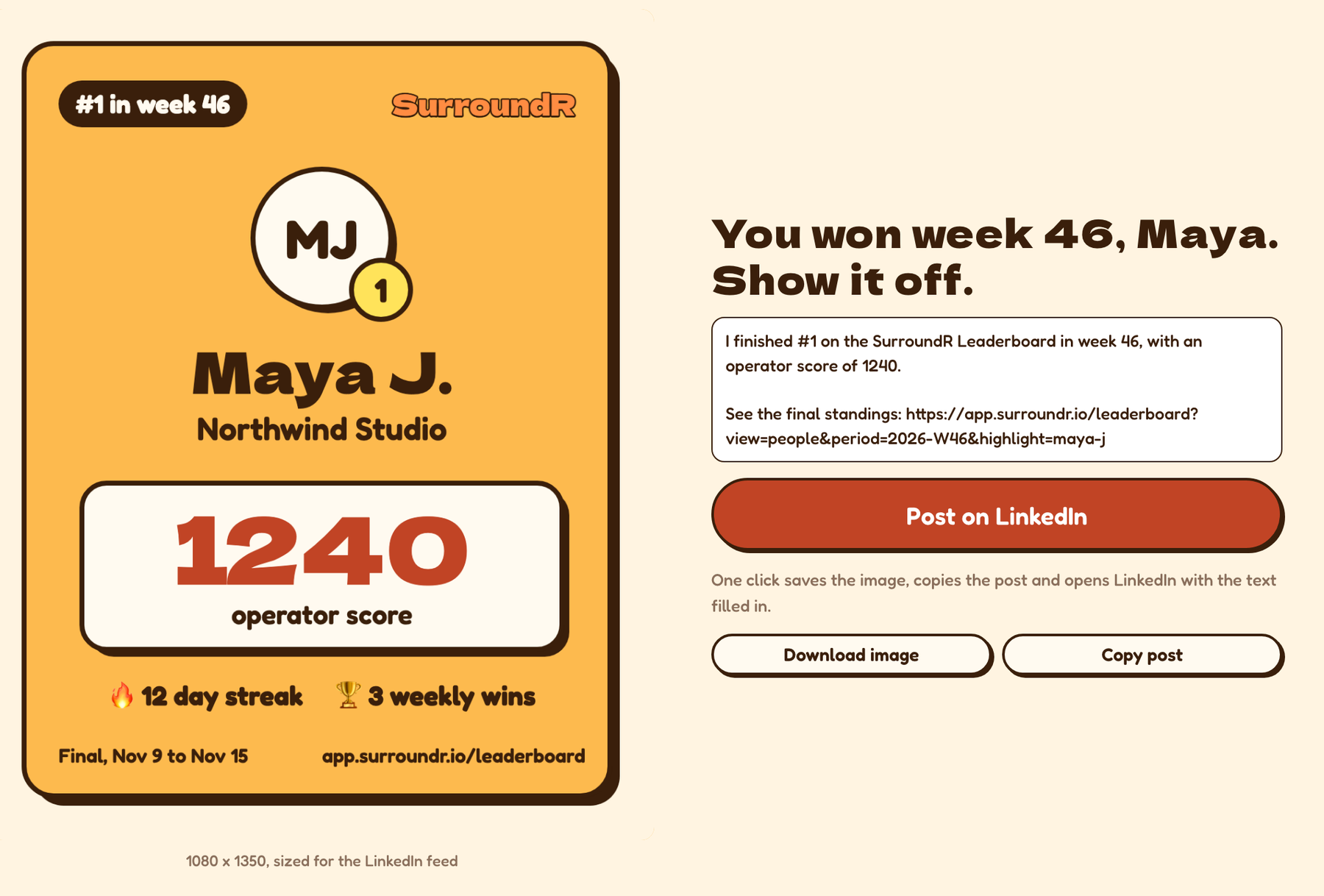
Your win, ready for LinkedIn

Admins decide if their company shows on the public board. Go to Settings, then General, and use "Show our company on the public leaderboard". It is on by default.

Ask your AI assistant about SurroundR

The new Settings page AI assistants connects SurroundR to Claude, Claude Code, ChatGPT, Cursor and VS Code. Copy the server URL, follow the steps for your assistant and sign in with your SurroundR login. You don't need an API key.
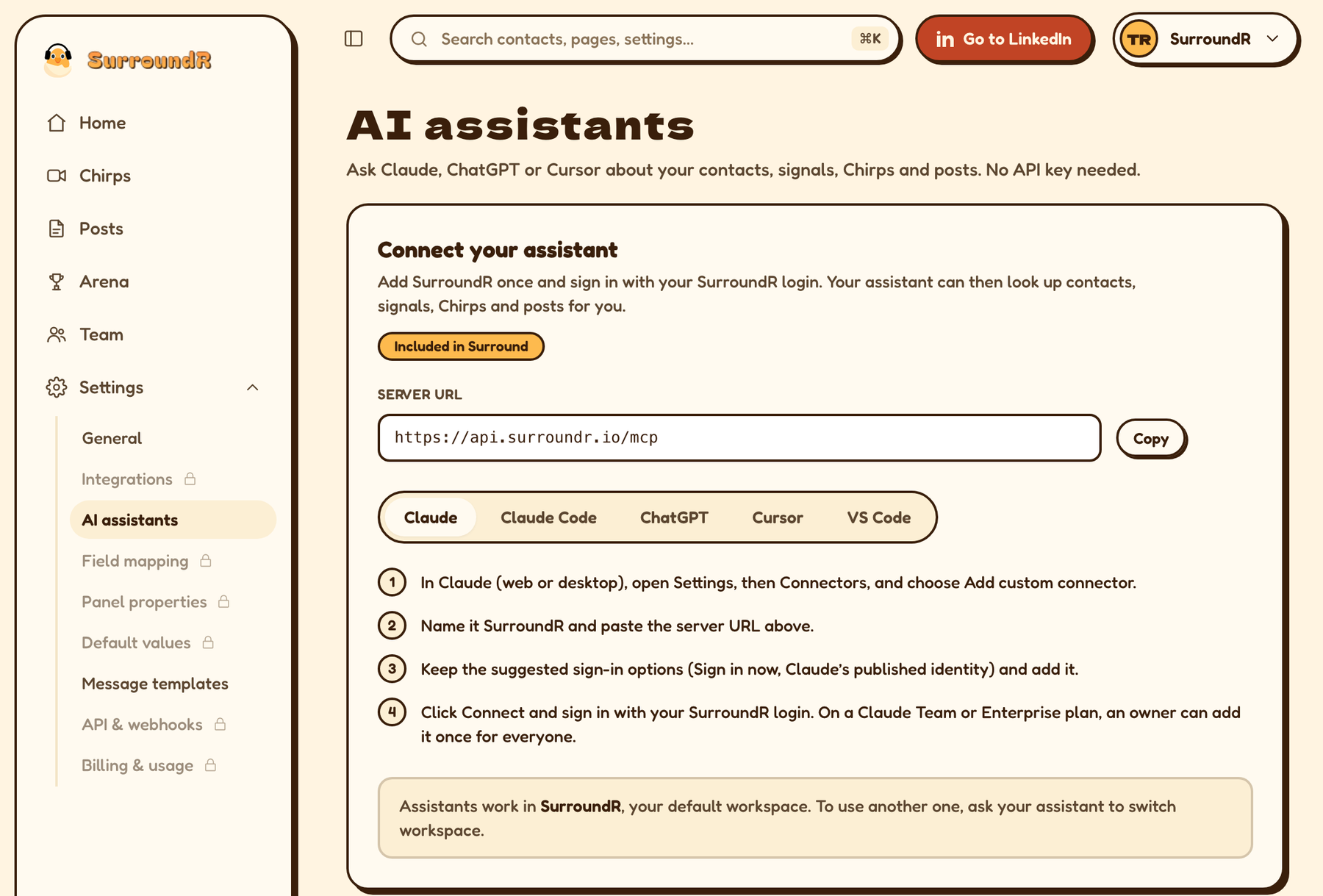
Settings, AI assistants

Then ask things like "Prepare me for my meeting with Jane at Acme tomorrow" or "How did my LinkedIn posts do this month?". The page has example prompts you can copy, for meetings, signals, Chirps, posts and your CRM. You can now also ask how your team is posting.

If your plan doesn't include AI assistants, the page tells you.

Also improved

Post sync

  • Each person in Who posts has a sync dot. Hover it to see their extension version, last sync and how our numbers compare to LinkedIn's own.

  • Each member page shows the same status in the top right, with a note when numbers may be low.

  • After you turn on post sync, your posts start loading right away, also in the evening. If the extension isn't running, we tell you.

  • New posts are checked every 15 minutes in their first hours, so early likes and comments show up sooner.

  • A teammate's post in Team posts clears as soon as you like, comment or repost it.

Reliability

  • When adding a contact fails, you get a better message to see why.

  • Bulk add from a company's People tab no longer shows people as locked. You can select and add them again.

  • Company lookups no longer fail on some companies.

  • Sales Navigator lookups no longer hang. Profile lookups find people whose LinkedIn name differs from your CRM.

  • You see your plan limit before you send a bulk add, not after.

  • The extension slows down when LinkedIn asks it to, and fewer LinkedIn calls fail after your computer was idle.

Chrome updates the extension on its own. Want version 3.2.4 now? Open chrome://extensions, turn on Developer mode and click Update.
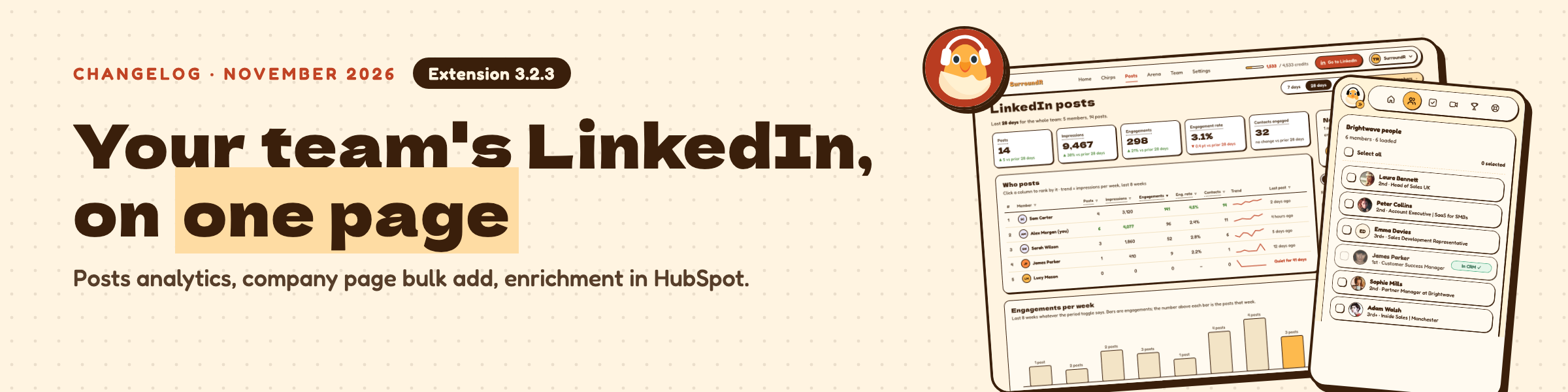
Your team's LinkedIn, on one page

Your team posts on LinkedIn every week. Now you can see what it brings in, without opening a single profile.

Key points

  • Posts has its own page in the top menu: who posts, what works, and who engaged.

  • Bulk add from a company page. Open a company's People tab and add the people you want in one go.

  • Enrichment lives in HubSpot. See and run searches straight from a contact record.

  • Clearer access control for team templates and chirps.

  • Your HubSpot connection, explained. See what each permission unlocks.

Posts: your team's LinkedIn, on one page

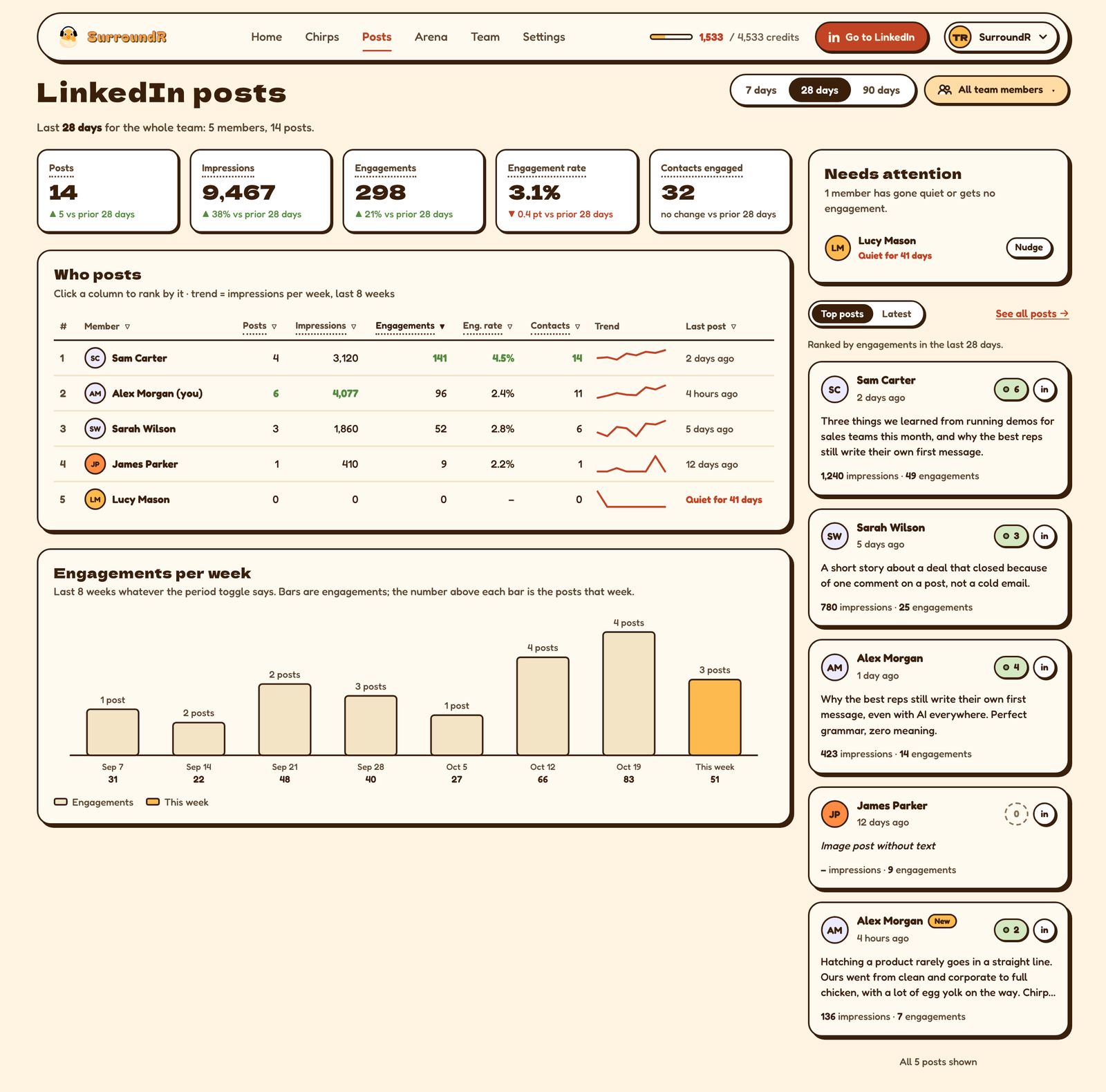
Posts now sits in the top menu, next to Chirps. Pick 7, 28 or 90 days and the whole team's LinkedIn activity is in front of you.

  • Overview. Posts, impressions, engagements and contacts engaged, each compared with the period before.

  • Who posts. A ranked table you can sort by any column, with an 8-week trend per person.

  • Needs attention. Teammates who went quiet, with a Nudge button.

  • Every post. A full feed with filters and sorting, plus Top posts and Latest in the sidebar.

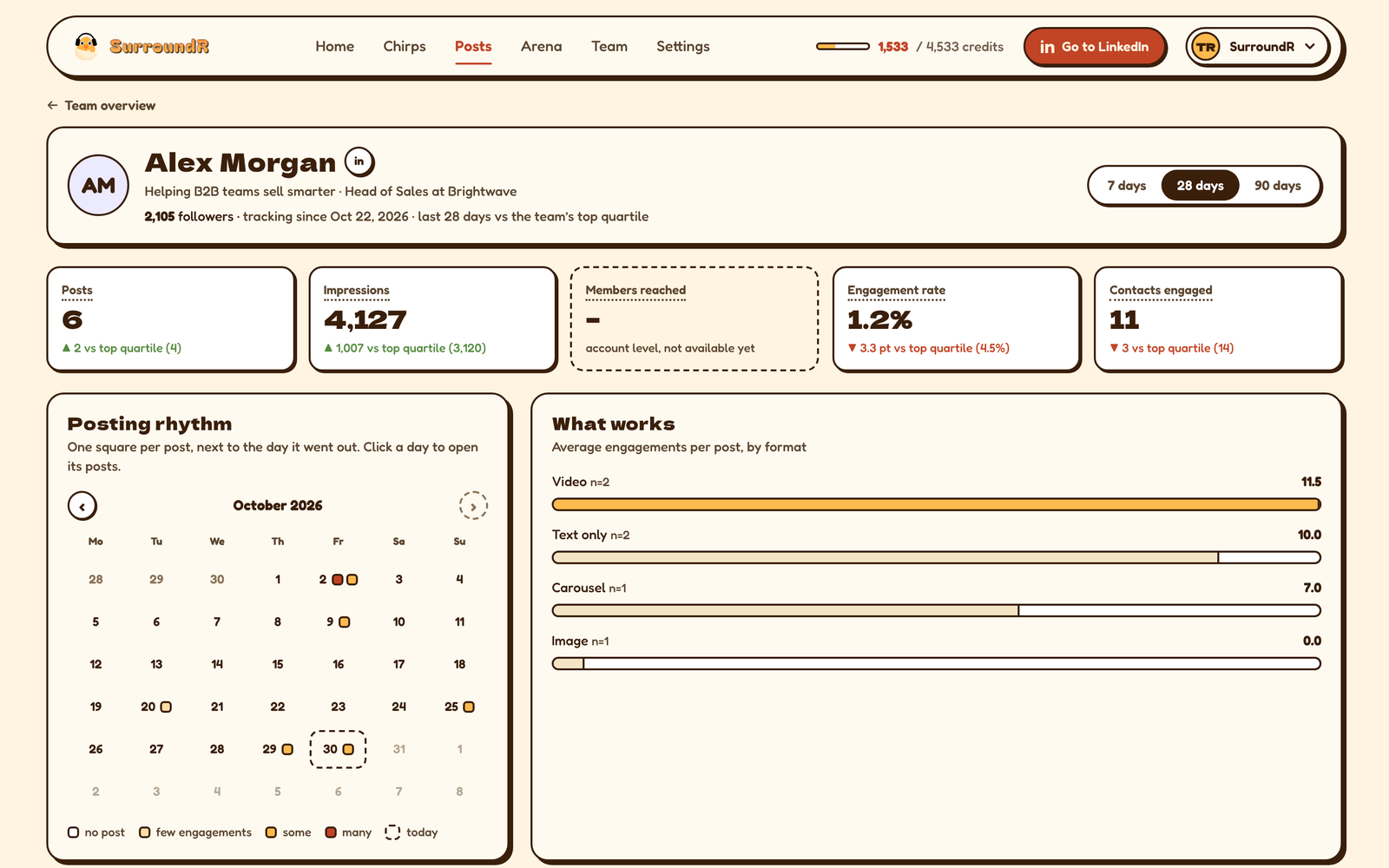
  • Per person. A posting calendar, which formats work best for them, and all their posts in one table.

  • Per post. Engagement over time and exactly who reacted, commented or reposted.

New posts show up minutes after you publish them. Just turned on post sync? Your most recent posts load first.

Team's post overview
One teammate: posting calendar and what works

Bulk add, straight from a company page

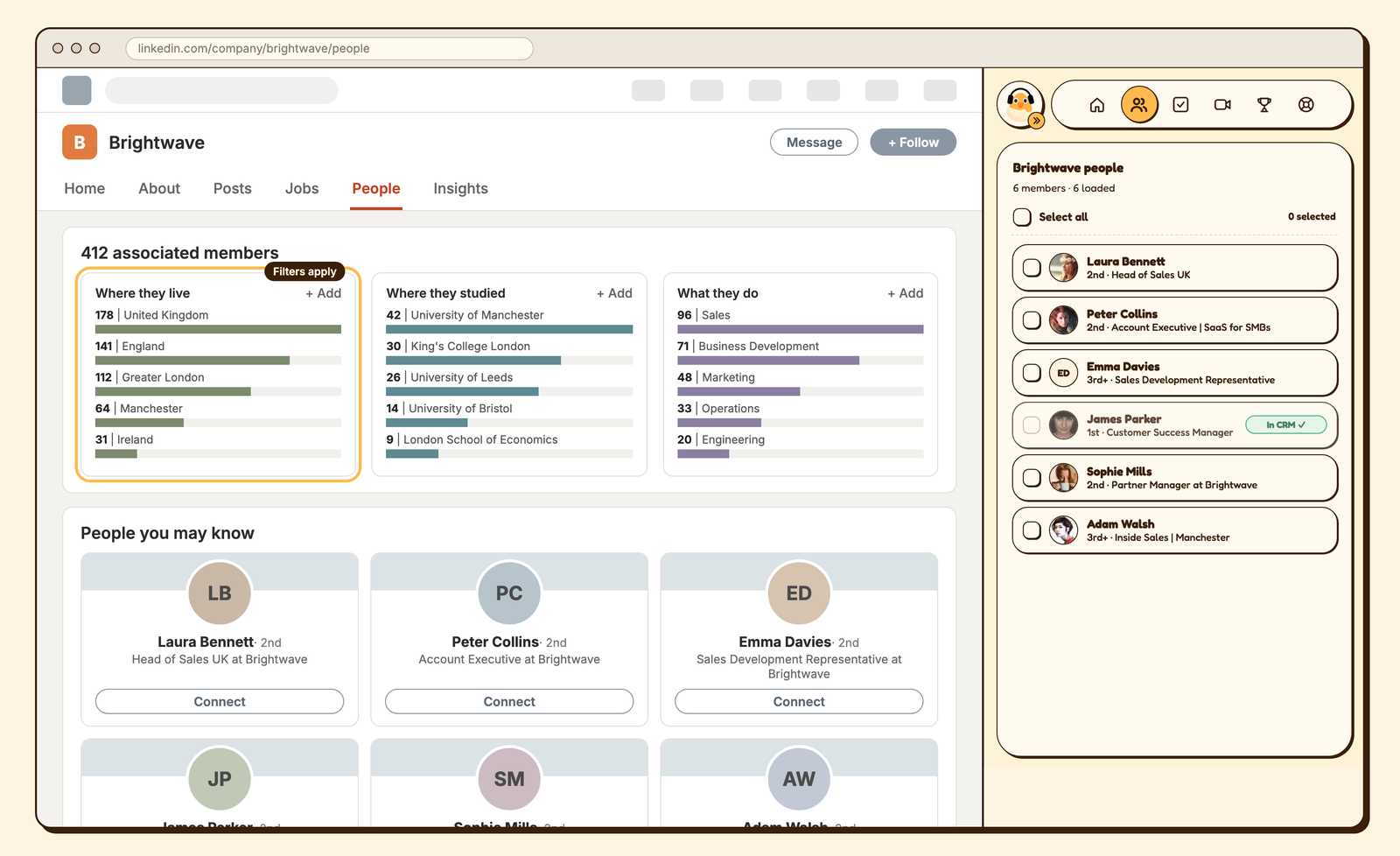
Found the right account? Open its People tab on LinkedIn. The side panel switches to a list of everyone on the page, filters included.

  • Tick the people you want, or Select all, and add them in one run.

  • People already in your CRM are marked, so you never add them twice.

  • Change a filter on LinkedIn and the list follows. Up to 100 people per page.

It works the same as people search and your connections list.

A company's People tab, with the list in the side panel

Enrichment, right inside HubSpot

Contact records in HubSpot get a SurroundR enrichment card, in the record tab and the sidebar. No need to go back to LinkedIn to check an email or a mobile number.

  • See the current email and mobile, their status, and when each was last searched.

  • See which sources were tried and which are left, plus your team's credits.

  • Start a search for email and mobile, email only or mobile only, and watch it run live.

  • Wrong value? Thumbs down to find a new one or remove it.

Improved access control for templates and chirps

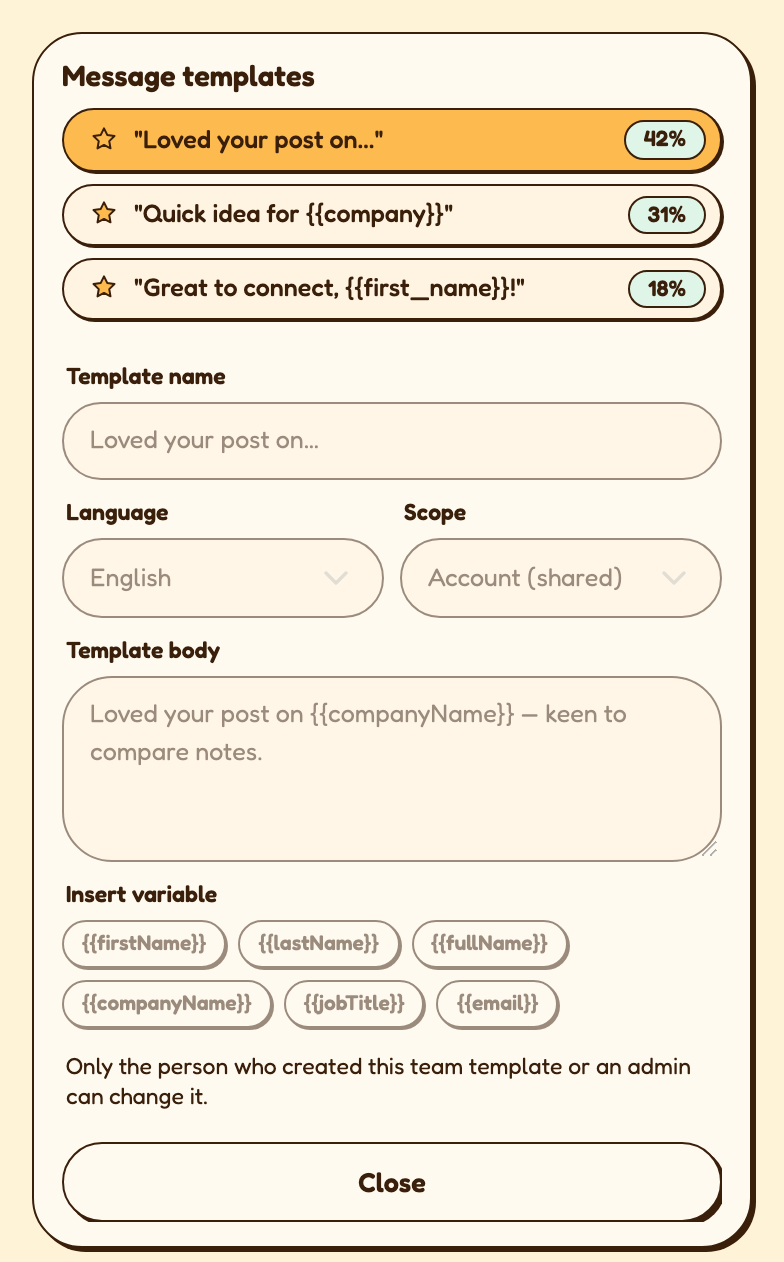
  • Team templates. Whoever creates a team template can now edit and delete it. Admins still can too. Everyone else sees it read only, in the web app and the extension.

  • Chirps. Workspace owners and admins can delete any chirp in their workspace, not only their own.

A team template you can't change opens read only

Your HubSpot connection, explained

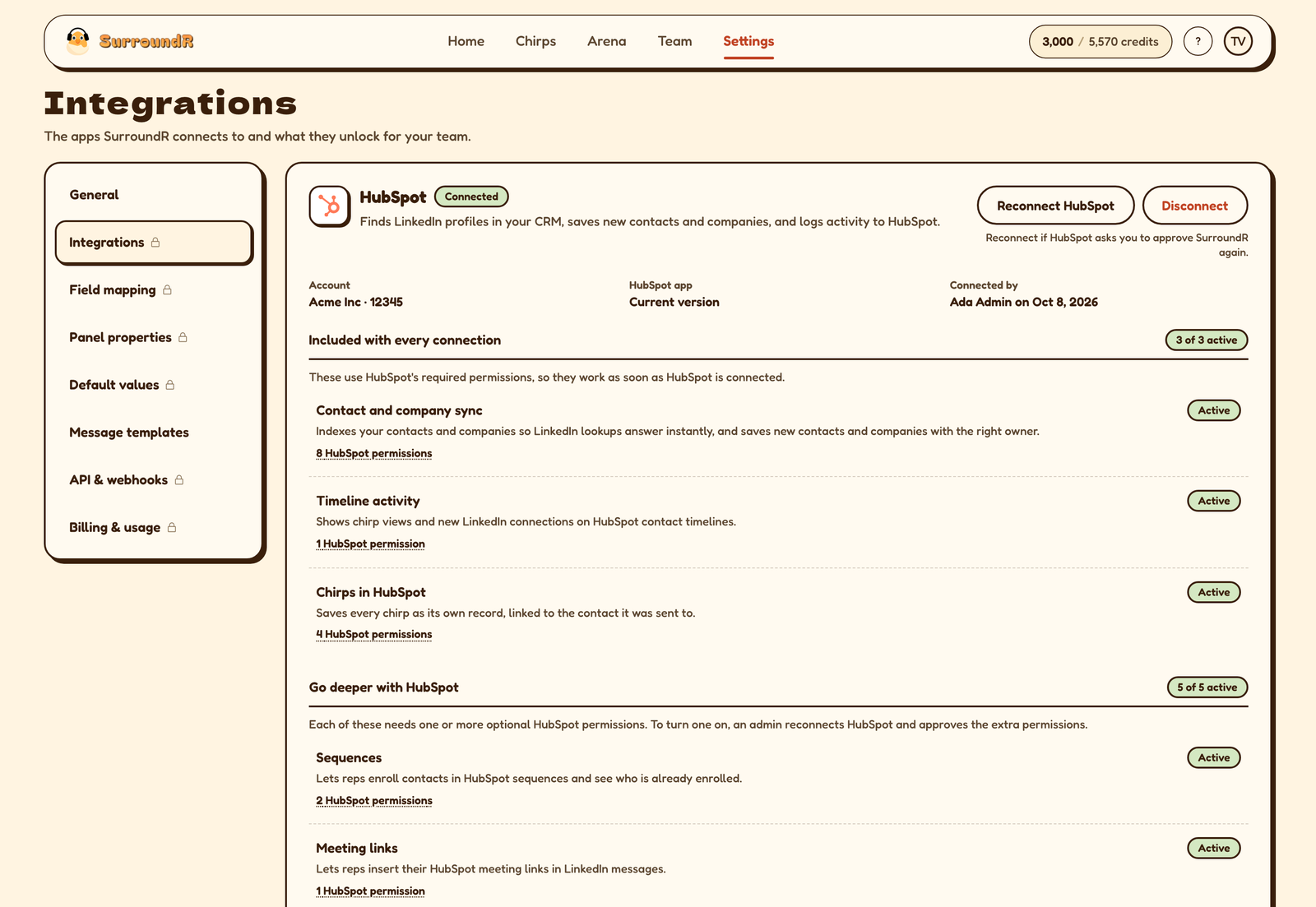
Settings > Integrations now shows what your HubSpot connection actually does for you.

  • Included with every connection: what works the moment HubSpot is connected.

  • Go deeper with HubSpot: the extras, such as sequences, meeting links and deals.

  • Click a permission count to see each HubSpot permission in HubSpot's own words.

  • Disconnect now asks on the page and spells out what stops, what keeps working and what never changes.

Settings > Integrations

Also improved

  • New users get a guided first add in the side panel. The floating Chirp button now starts switched off; turn it on from the extension popup.

  • Sign-in window hiding behind another one? A button brings it back to the front.

  • Task lists with more than 100 contacts keep all their contacts.

  • Adding a contact to HubSpot works even when their company is not synced yet.

  • Field mapping stays usable when HubSpot refuses access to company fields.

  • Sales Navigator lookups wait out LinkedIn's rate limits instead of failing.

Faster and steadier

Profiles you already checked show up instantly when you come back to them. Company search is quicker, idle LinkedIn tabs stay quiet, and the extension does less work while you browse LinkedIn.

Chrome updates the extension on its own. Want 3.2.3 right now? Open chrome://extensions, turn on Developer mode and click Update.
SurroundR follows you into HubSpot

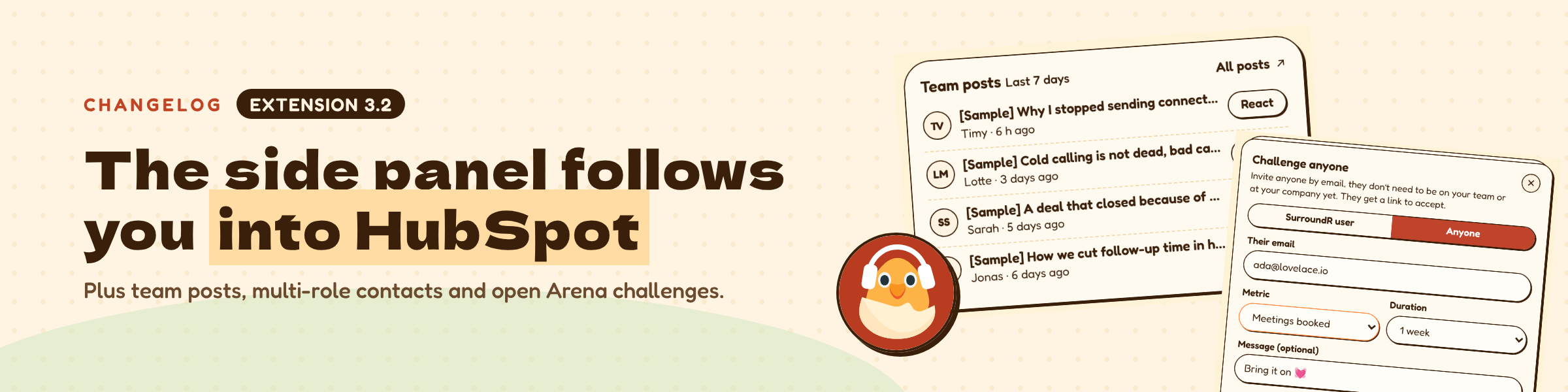
The side panel now opens on HubSpot records and on your LinkedIn connections. Contacts with two jobs land at both companies, the DM window does more in fewer clicks, and you can challenge anyone in the Arena.

Key points

  • The side panel works on HubSpot contact and company records, and on your LinkedIn connections list.

  • Team posts on Home shows the teammates' posts you have not reacted to yet.

  • Add or update a contact at all of their current companies at once.

  • A new More actions menu in the DM window, with Quick task.

  • Challenge any SurroundR user, or anyone by email, and accept challenges straight from Chirpy.

The side panel follows you

On HubSpot records

Open a contact or company record in HubSpot and the side panel shows the same SurroundR page you get on their LinkedIn profile. It works for the HubSpot portal connected to your workspace and follows you as you click through records. Deals, tickets and list views show the usual "not on a profile" screen.

On your LinkedIn connections

Your connections list (My Network, then Connections) now gets the list view, bulk add and "already in CRM" highlights you know from LinkedIn people search. The panel loads your first 100 connections and shows how many are loaded out of your total.

Team posts on Home

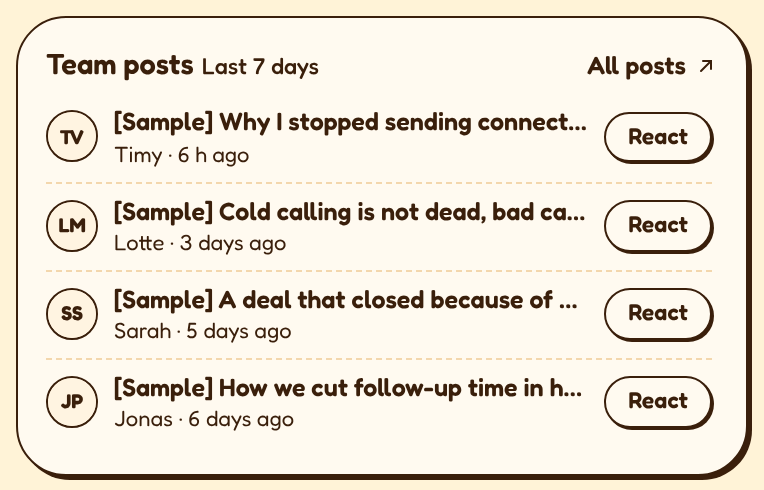
A new Team posts card lists your teammates' recent LinkedIn posts that you have not reacted to, commented on or reposted. It covers the last 24 hours, or the last 7 days when your team posted fewer than three times. Click React to open the post on LinkedIn. The card hides itself when nothing is waiting.

Team posts card on the side panel Home tab

Quick settings and Chirps, tidied up

Quick settings has a compact account card, one-row feature switches that explain themselves on hover, and a new Notifications card where you choose what SurroundR tells you about. Chirp cards are more compact, with one-click links to LinkedIn, HubSpot, the Chirp page and Copy link.

Two jobs, two companies

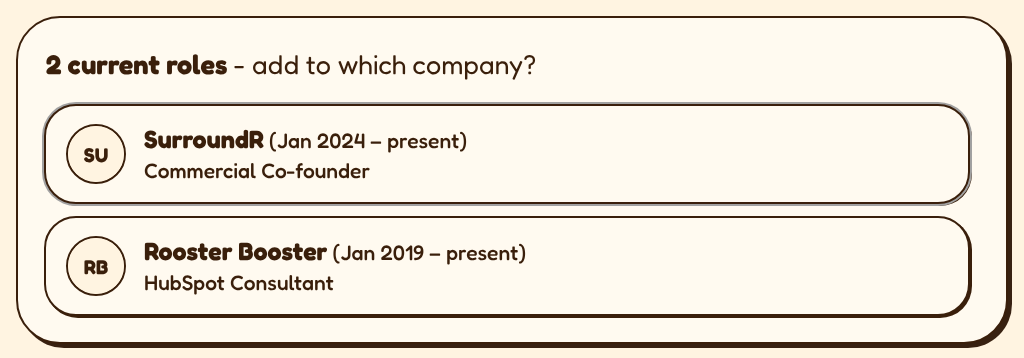
Plenty of people hold more than one current role: a day job and a board seat, or two companies they run. When you click + Add on someone with several current roles, you now pick which companies to associate. Pick one, several or none, and mark the primary company once you pick two or more. Roles without a LinkedIn company page can be linked to an existing company right there.

Update on a contact who is already in HubSpot works the same way. HubSpot can take up to a minute to show the extra companies. If your workspace requires a company on every contact, "no company" stays disabled.

Picking companies for a contact with two current roles

DMs, fewer clicks

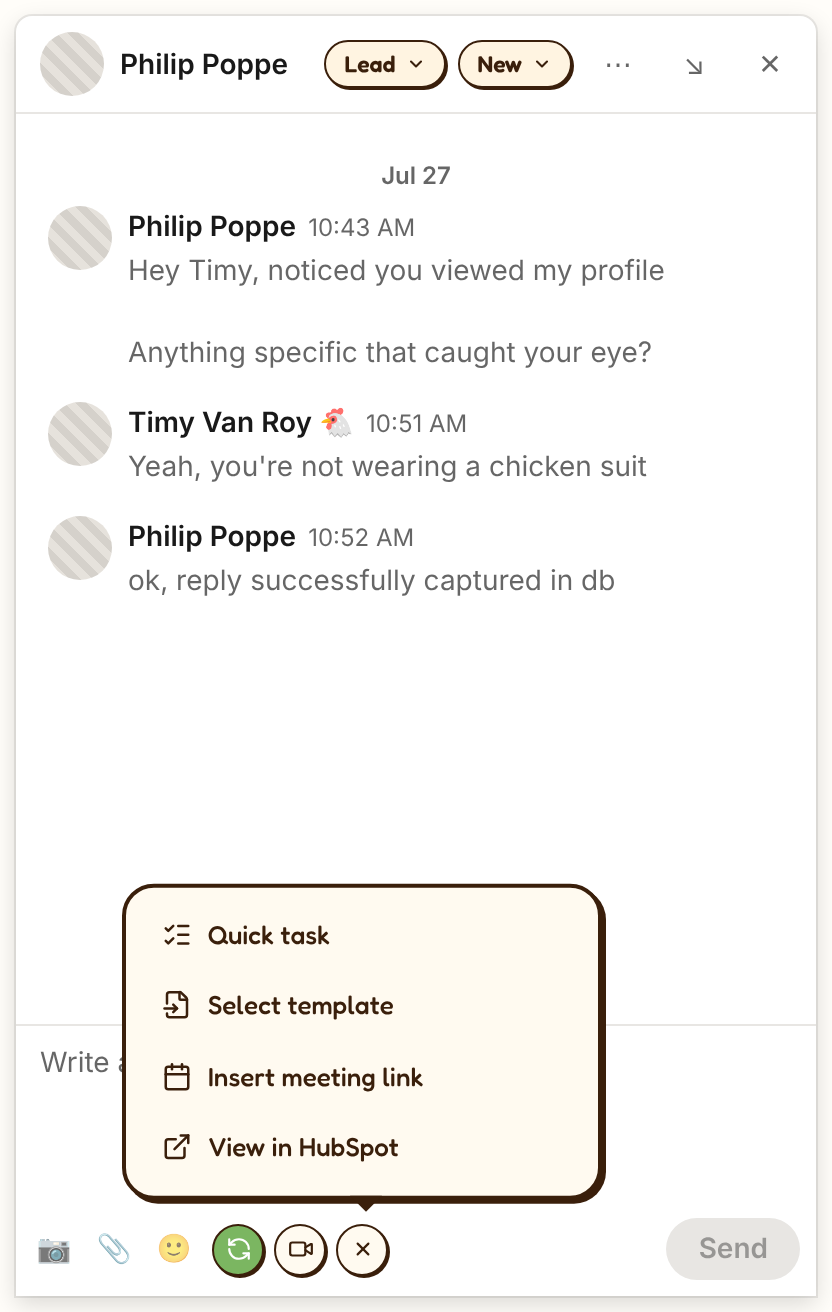
  • More actions: a new menu in the DM footer holds Quick task, Select template, Insert meeting link and View in HubSpot. Quick task opens with the contact already filled in.

  • Templates add, they don't replace: a template now lands below what you already typed instead of wiping your draft.

  • Your own stages: the lifecycle stage and lead status pills in the DM header show your portal's own stages and statuses, custom ones included. Fields an admin locked in settings look read-only.

  • Calmer pop-ups: only one footer pop-up opens at a time, and tooltips stay with their button and disappear when you move away.

The More actions menu in the LinkedIn DM window

Arena: challenge anyone

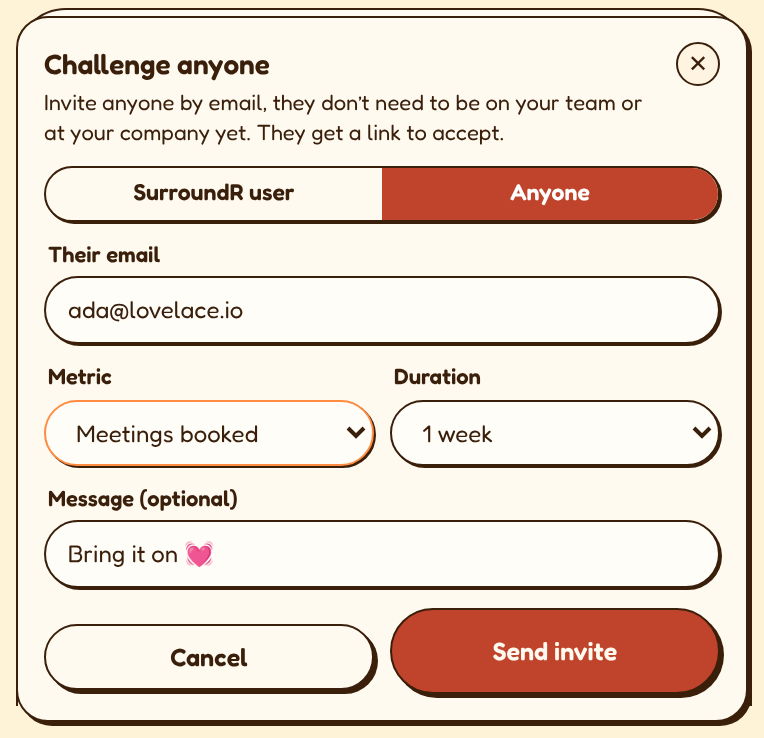
Challenges are no longer limited to your teammates. From the Arena in the side panel or the web app, challenge any SurroundR user, or switch to Anyone and invite someone by email. They get a link to accept. Pick the metric and the duration, and add a message if you like. Chirps sent challenges can also run for 15 minutes or an hour.

Challenge anyone by email from the Arena

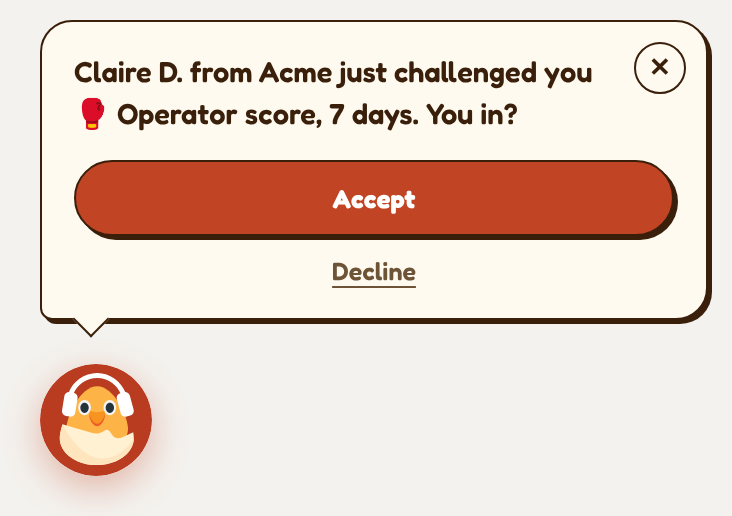
When someone challenges you, Chirpy pops up with Accept and Decline, and the invite also waits for you in the Arena. If the challenger works at another company, Chirpy tells you which one. Once your opponent accepts, Chirpy lets you know the game is on.

Chirpy brings in a challenge from another company

Also improved

  • Enrichment now throws out results that belong to a different person, and values that come back partly masked. A value you chose to keep no longer comes back for review when you revisit the profile.

  • Bulk sequence enrollment retries contacts whose email was still syncing to HubSpot, instead of skipping them.

  • HubSpot properties that hold a user, such as owner fields, now get a proper user picker.

  • The HubSpot integration page shows sync progress instead of record counts, and loads fast on large portals.

  • Opening the web app more than an hour after signing in no longer signs you out of the web app and the extension.

  • Open web app tabs reload onto the new version after an update, so you never work on an outdated page.

  • Background LinkedIn checks now run at a human pace, with no bursts after your browser was closed. The reload banner only shows when there is a new version.

Chrome updates the extension on its own. To get 3.2 right away, open chrome://extensions, turn on Developer mode and click Update.
Earlier updates