Title: Create an API key
Who can create keys, how to generate, copy and revoke them in Settings, and how to keep them safe.
Written By Philip Poppe
Last updated About 2 hours ago
An API key lets your own systems (a CRM sync, a data warehouse job, an internal tool) call the SurroundR enrichment API on behalf of your account. You create and revoke keys yourself in the web app. This article covers who can do that, how, and how to keep a key safe.
Before you start
You need to be an account admin or owner. Members do not see the API keys page, and the API refuses key management from anyone else.
Your plan has to include API access. If it does not, the page tells you so and links to Billing. Talk to us if you want it added.
Create a key
Open the SurroundR web app and go to Settings, then API keys.
Click Generate API key.
A dialog shows Your new API key. Click the copy button and store the key somewhere safe, like a secrets manager or your server's environment variables.
Click Done.
You only see the full key once. We store a hashed version, so nobody at SurroundR can show it to you again. If you lose it, revoke it and generate a new one. Clicking outside the dialog will not close it by accident; only Escape, the close icon or Done do.
What the key looks like
Keys start with srk_live_. That prefix makes a leaked key easy to spot in code reviews and secret scanners. Every call made with a live key is real: it runs a real enrichment and spends real credits.
You send the key in the Authorization header of every request:
Authorization: Bearer srk_live_...The next article, Make your first API call, shows how to check the key works.
Your keys table
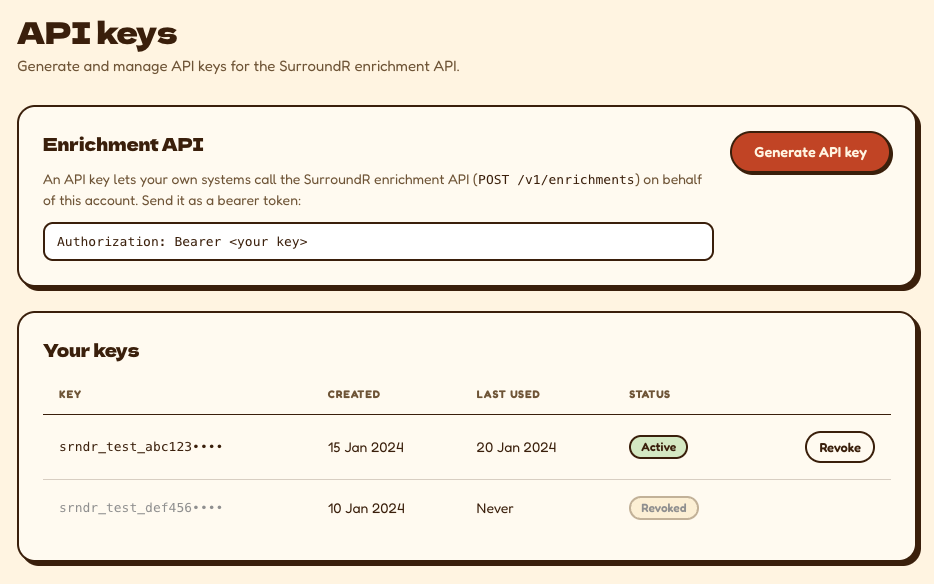
Under Your keys you see every key on the account:
Key: the prefix only. The rest of the key is never shown after creation.
Status: active or revoked.
Created: when it was generated.
Last used: when it was last used to call the API (refreshed at most once a minute). A key that has not been used in months is a good candidate to revoke.
You can have several keys at once. Use one per system, so you can revoke one integration without breaking the others.
Revoke a key
In Your keys, click Revoke key on the row.
Confirm in the Revoke API key? dialog.
Revoking takes effect immediately and cannot be undone. Anything still using that key gets 401 unauthorized from then on. Your other keys keep working.
Replace a key without downtime
Generate a new key.
Deploy it to the system that uses the old one.
Check the old key's Last used stops moving.
Revoke the old key.
Keep your key safe
Use it from your servers only. Never put it in a browser page, a mobile app or a Chrome extension, where anyone can read it.
Never commit it to Git. Keep it in environment variables or a secrets manager.
Anyone holding the key can run enrichments on your account and spend your credits. If you think a key has leaked, revoke it straight away.
If you cannot generate a key
"API access isn't included in your plan." Your plan does not have the enrichment API. Follow View plans and billing or contact us.
"The enrichment API isn't available yet." The API is not switched on for your account yet. You can generate keys here as soon as it is.
You do not see API keys in Settings at all. You are not an admin. Ask an admin on your account to create the key, or to change your role.