Use your own enrichment provider keys
Add an API key for a provider you already pay for so lookups use your provider credits instead of SurroundR credits, and set the order they run in.
Written By Philip Poppe
Last updated 11 days ago
If your team already pays for a data provider, you can plug your own API key into SurroundR. Lookups that run through your key are billed by that provider to you, and cost no SurroundR credits. It is the cheapest way to run high enrichment volume when you already have a contract in place.
Providers you can bring a key for
Lusha
Apollo
BetterContact
Dropcontact
Snov.io
RocketReach
Everything else in the lookup order runs on SurroundR's own provider pool (Wiza, Prospeo, FindyMail, Hunter and FullEnrich) and is paid for with SurroundR credits.
Add a key
Adding and removing keys is admin only. Members of the account can see which providers are configured but not change them.
Go to Settings > Enrich settings.
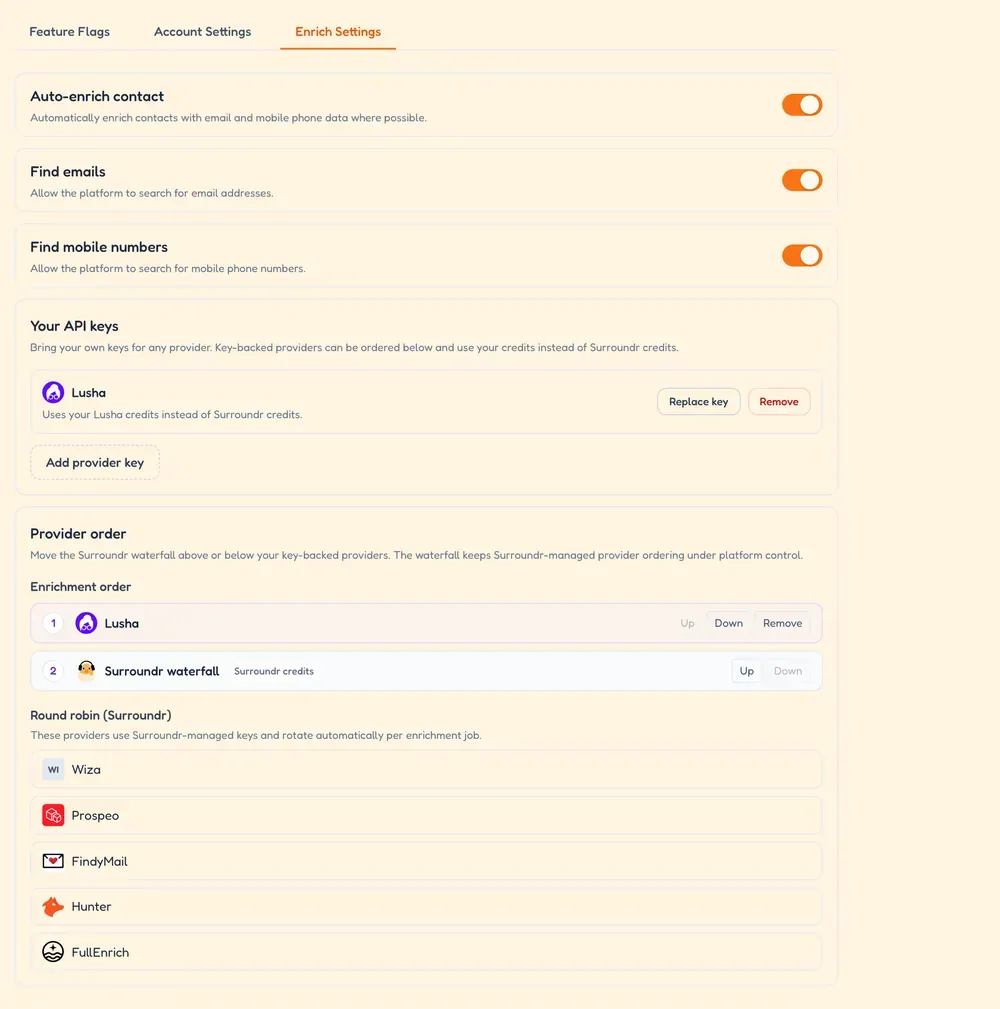
Under Your API keys, click Add provider key.
Pick the provider and paste the API key from that provider's dashboard.
Save. SurroundR checks the key against the provider straight away, so you find out immediately if it was pasted wrong.
Once saved, the provider appears in the list with a note that it uses your credits instead of SurroundR credits.
Decide the order lookups run in
Below the key list, Provider order decides who gets asked first. It has two parts.
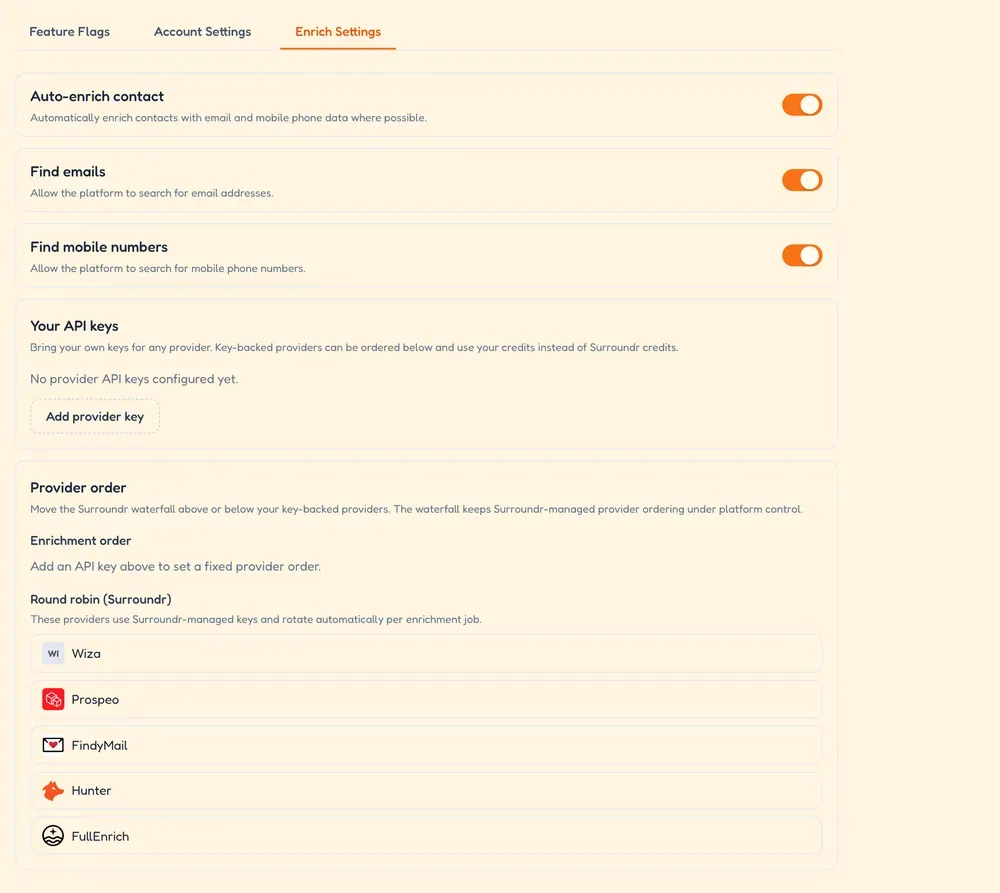
Enrichment order is the list you control. Each provider you have a key for gets a row, and there is one more row called Surroundr waterfall that stands for our whole provider pool. Move rows with Up and Down. Put your own key above the waterfall and your credits are spent first, with SurroundR credits used only for what your provider could not find. Put it below and the waterfall goes first.
Round robin lists the providers inside the waterfall: Wiza, Prospeo, FindyMail, Hunter and FullEnrich. These run on SurroundR-managed keys and rotate automatically per job, so there is nothing to order there. Keeping that under platform control is what lets us balance load and keep hit rates up.
A lookup stops as soon as a provider returns a verified result, so this order genuinely decides what you spend.
Replace or remove a key
Replace when you rotate the key at the provider: paste the new one over the old, on the same row.
Remove to stop using that provider entirely. Its row leaves the enrichment order and lookups fall through to the waterfall, which spends SurroundR credits again.
Keys are encrypted before they are stored, are only decrypted at the moment a lookup needs them, and are never shown back to you or written to logs. See How does SurroundR handle security and data privacy? for the detail.
When a key stops working
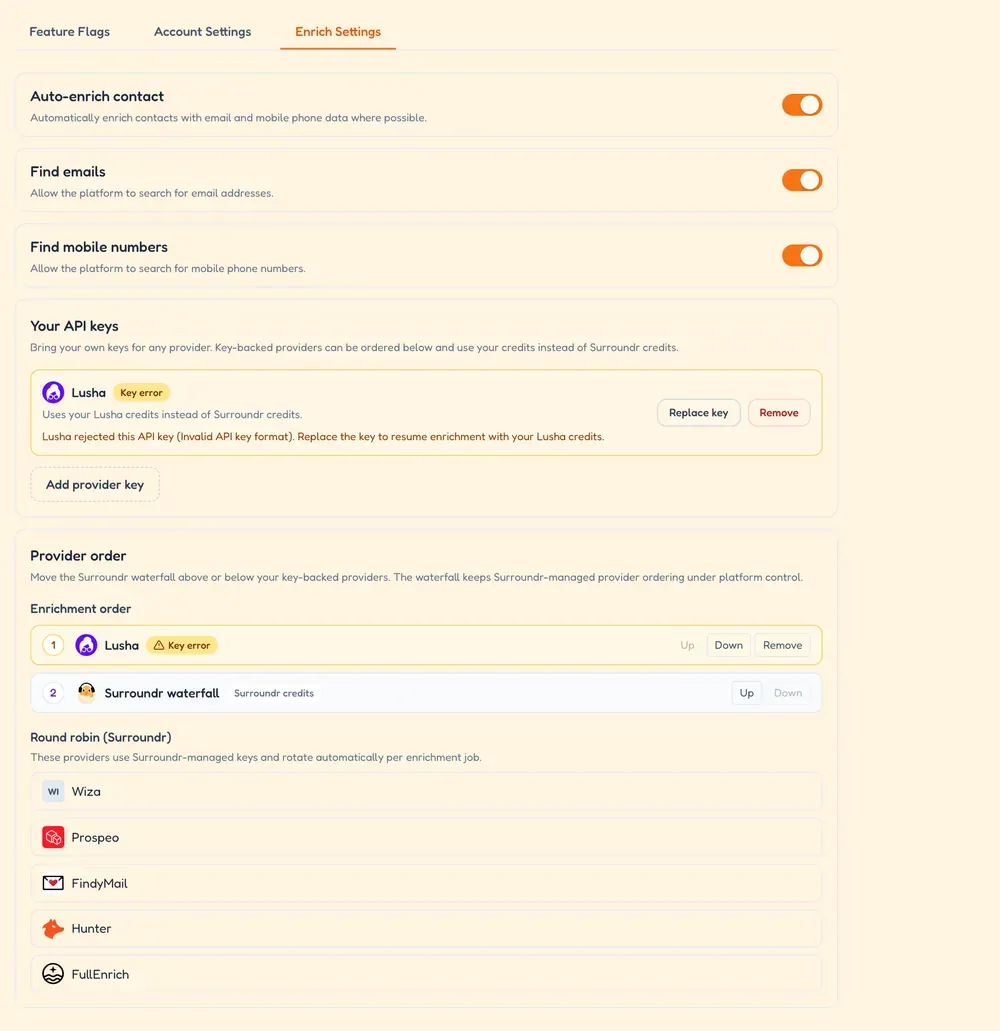
Two things go wrong in practice, and SurroundR handles both the same way: it stops asking that provider and carries on down the order, so enrichment keeps working.
The provider rejected the key. Usually a rotated or revoked key. The row shows that the provider rejected it, and you get notified so it does not fail quietly for weeks. Paste a fresh key to fix it.
You are out of credits at the provider. Top up on their side and the provider is used again automatically.
Both cases mean lookups start falling through to SurroundR's provider pool, which spends SurroundR credits. Worth checking this page if your credit use jumps unexpectedly.
Good to know
A key applies to the whole account, so everyone on your team benefits from it.
Your provider's own limits still apply. If they rate limit you, lookups queue and retry rather than fail outright.
Bringing your own key changes who pays for the lookup, not what enrichment does or what gets written to HubSpot. Your field mapping still decides where values land.
A result served from an earlier lookup still spends SurroundR credits, even with your own key configured.
Not sure whether a key is worth it? Check your credit use for a month under Settings > Billing first, then compare it against your provider's per-lookup price.