Sharing a Chirp and seeing who watched it
Share to a CRM contact, paste an animated preview into a LinkedIn message, and read the view and completion figures that come back.
Written By Philip Poppe
Last updated 10 days ago
Recording the Chirp is half of it. The other half is getting it in front of the right person and knowing what they did with it. Open a Chirp and click Share.
The three ways to share
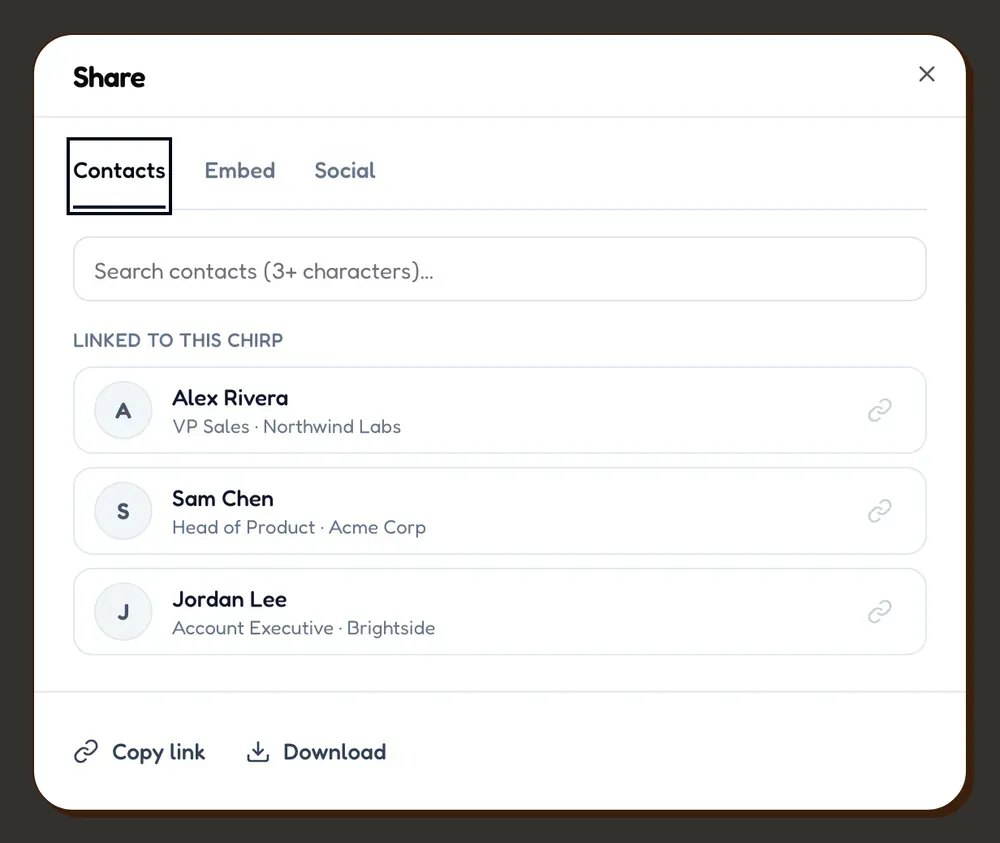
The share window has three tabs.
Contacts
Search your CRM and pick the person you are sending it to. This is the tab that matters. Sharing to a contact attributes every view to that person, so the Chirp can tell you who watched rather than only how many times it was opened.
Social
Copy the link to paste anywhere, plus Copy GIF to clipboard. The GIF is the trick worth knowing: paste it straight into a LinkedIn message and the person sees a moving preview of your face and screen instead of a bare URL. A link looks like marketing. A moving preview of you looks like a person.
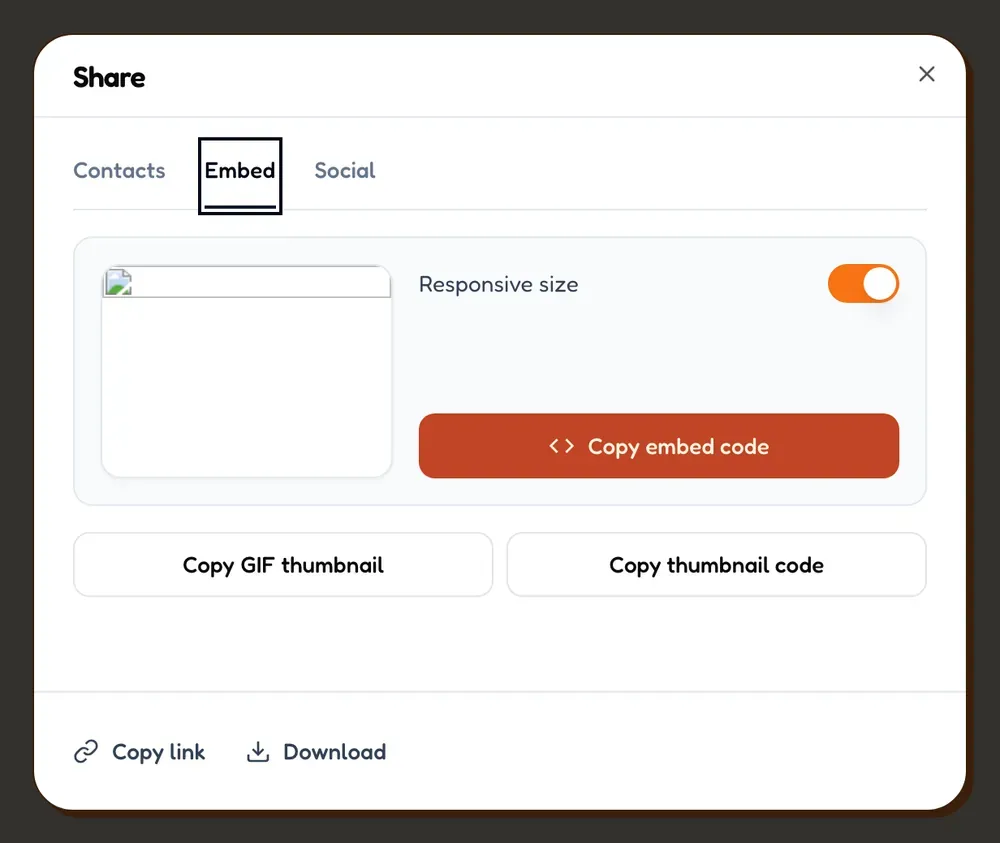
Embed
An iframe snippet for a page or a proposal, with a fixed width and height or a responsive size.
What the recipient sees
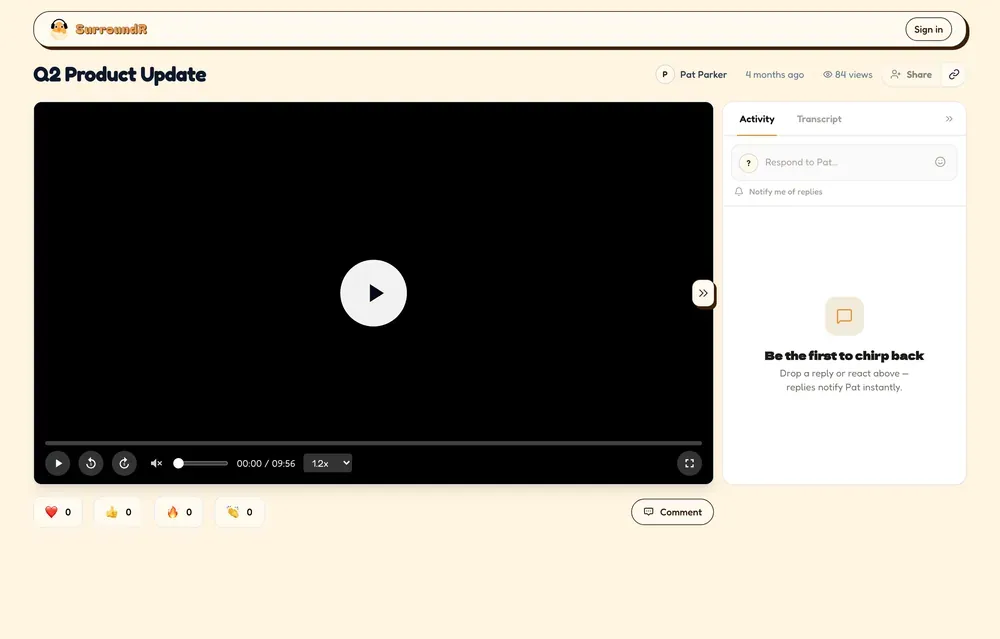
A page with the video, your name and the title, and nothing to sign up for. No account, no login, nothing to install.
They can:
Watch at their own pace. The player has playback speed, skip back and forward, and fullscreen. Plenty of people watch a Chirp at 1.5x, which is another reason to keep it short.
React with a heart, a thumbs up, fire or applause. One tap, no typing, which is why reactions come back far more often than replies.
Reply in the activity panel next to the video. Replies reach you straight away.
Follow the thread with "Notify me of replies", if a conversation gets going.
What you can measure
Open a Chirp and you get:
Total views and Unique viewers.
Avg. watched and Completion rate, so you can tell a polite open from someone who actually watched it through.
Comments and Reactions.
Watch progress per viewer, and when they last watched.
Your own views do not count. Rewatching your own Chirp to check the audio will not inflate anything.
Average watch percentage is the number to pay attention to. A Chirp that everyone opens and nobody finishes is usually too long or takes too long to get to the point.
Get told when they watch
On a Chirp, use the bell: Notify me when a contact views this Chirp. Turn it on and you hear about it when the person opens it, which is the moment to follow up while you are still fresh in their mind. Toggle it again to turn it off.
Sent, Viewed, Replied
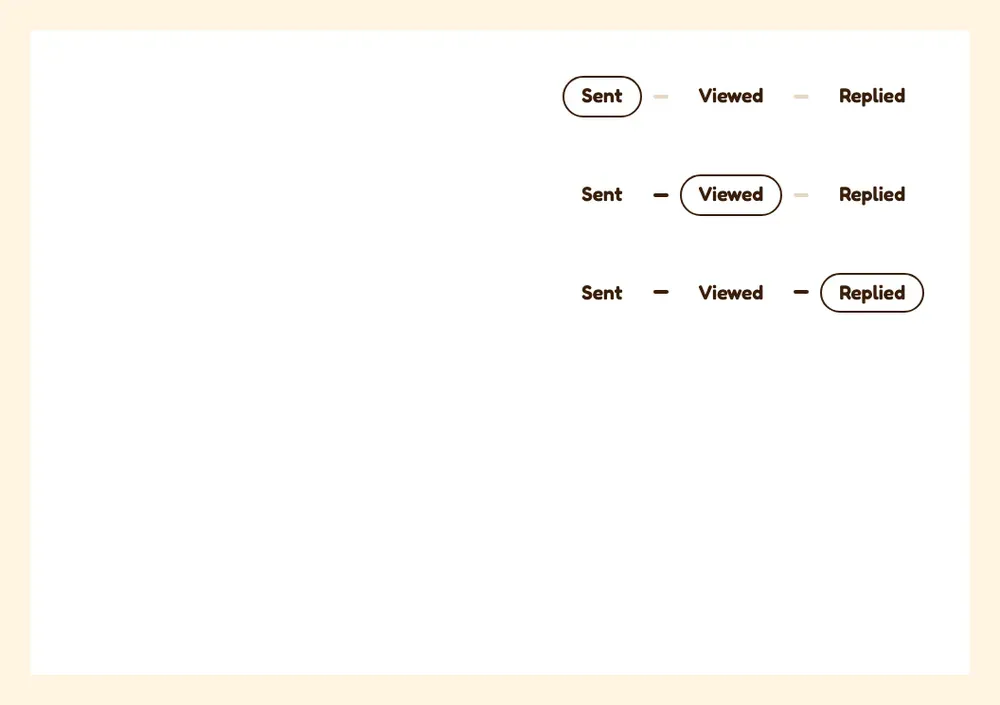
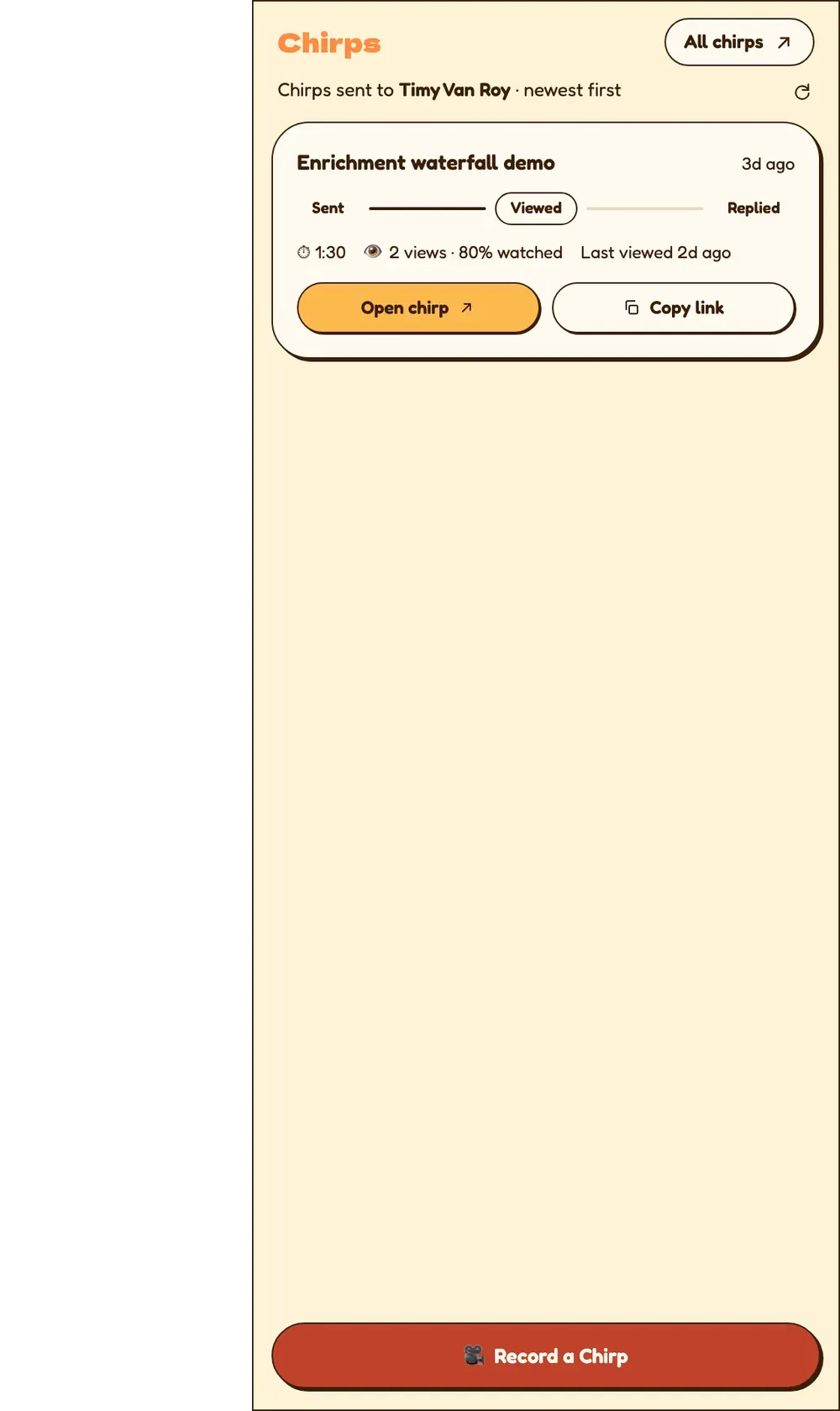
Every Chirp moves through three stages, shown as a stepper in the extension and as filters on the Chirps page:
Sent, shared with a contact.
Viewed, they opened it.
Replied, they left a comment.
A reaction is not a reply, so a Chirp someone loved with a thumbs up still sits in Viewed. Check the reaction count before you write one off as ignored.
On the Chirps page, the outcome filter uses the same three, so "everything I sent that nobody has opened yet" is one click. That list is your follow-up queue.
In HubSpot
Chirp views arrive on the contact in HubSpot as events, so the activity is visible to anyone looking at the record, not only to the person who sent it. Useful when a colleague picks up the conversation, and useful for reporting on what actually drives replies.
Good to know
Sharing unlocks once the Chirp finishes processing. Sharing earlier would put a broken preview into LinkedIn's cache.
Anyone with the link can watch. Treat a Chirp link like any other unlisted link and do not put anything in a Chirp you would not want forwarded.
One Chirp can be shared with several contacts, and views are attributed separately for each.
Deleting a Chirp breaks the link for everyone you sent it to.
Chirps play on mobile. A few older recordings exist only in a format iOS will not play.