Your team: roles, invites and access
Admin against User, what each can reach, inviting by email or by workspace link, and managing members.
Written By Philip Poppe
Last updated 10 days ago
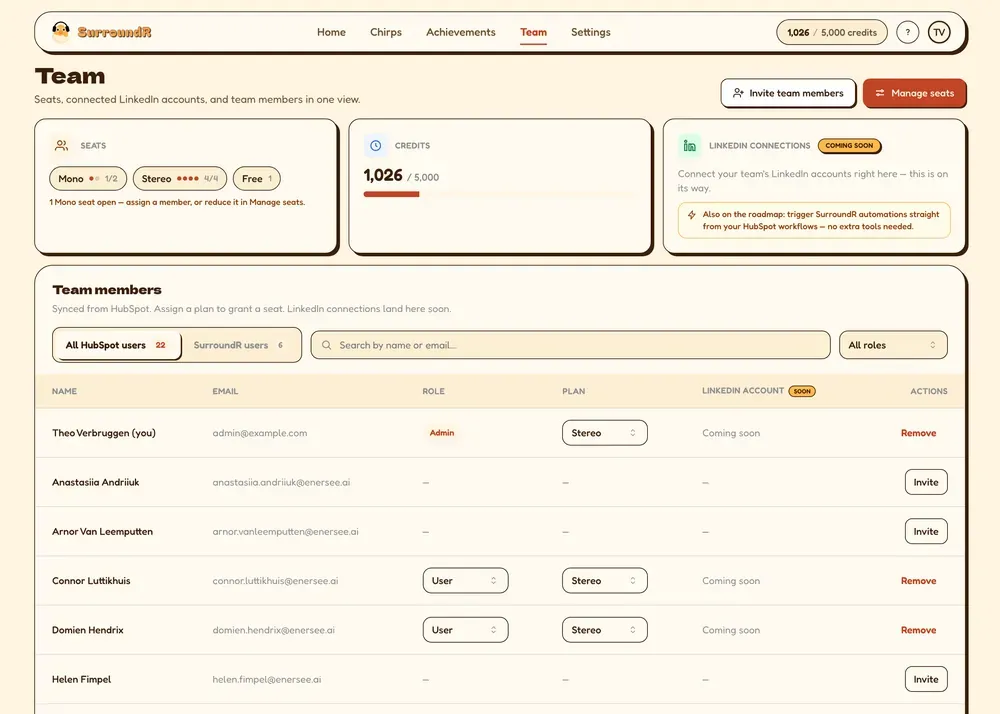
Everyone who signs in to SurroundR with your HubSpot account shares one SurroundR account. The Team page is where you see who they are, what they can do, and how to add someone.
Two roles
SurroundR keeps this deliberately simple. A member is either an Admin or a User.
Admins can:
Invite and remove members, and change anyone's role.
Assign plans and manage billing.
Reach the admin-only Settings pages: Field mapping, Default values and Billing, plus Your API keys and Provider order on the Enrich settings tab.
Users get everything else: the panel on LinkedIn, enrichment, Chirps, tasks, templates, and their own personal settings.
You cannot change your own role. That is on purpose: it stops the last admin accidentally locking the account out of its own field mapping.
Adding someone
Click Invite team members. There are two methods, and the modal asks which you want.
Email addresses
Type one or more addresses and click Send invites. Each person gets an email invitation. Use this when you know exactly who is joining.
Workspace invite link
Copy one link and share it however you like, in Slack or in a message. Anyone who opens it joins your SurroundR account. Use this for onboarding several people at once, and treat the link like a password: anyone who has it can join.
Someone opening an invite link sees a short check while SurroundR validates it. If the link has been replaced or has expired, they get Link no longer valid rather than a broken page, and you can send them a fresh one.
Managing the team
Search by name or email, and filter by role, which is how you answer "who are my admins" on a big team.
Resend an invitation that never arrived.
Remove a member who has left.
Change a role from the row itself.
Assign a plan to a member, which is how seats get allocated.
There is also a HubSpot users view, for seeing everyone in your HubSpot portal rather than only those already using SurroundR. It is admin-only and still on the way.
Good to know
Members sign in with HubSpot. There is no separate SurroundR password to set or reset.
Deactivated HubSpot users are filtered out of the team list and the owner dropdowns, so you are not assigning tasks to people who left.
Removing someone from the team does not touch anything in HubSpot, and does not delete the contacts, notes, tasks or Chirps they created. Those belong to the account.
Only one HubSpot account can be connected per SurroundR account. See How do I connect SurroundR with HubSpot?
Personal settings are personal. A new member starts with the defaults and can change their own without affecting anyone.