Adding, linking and updating contacts from LinkedIn
Add against link, picking the right role when someone has several, pushing an update, linking companies, and curating the properties the panel shows.
Written By Philip Poppe
Last updated 10 days ago
The panel's main job is getting the person you are looking at into HubSpot correctly, and keeping them there. This covers adding, linking, updating, and fixing it when the wrong record is attached.
When they are not in your CRM
The panel says "[Name] is not in your CRM" and offers two buttons.
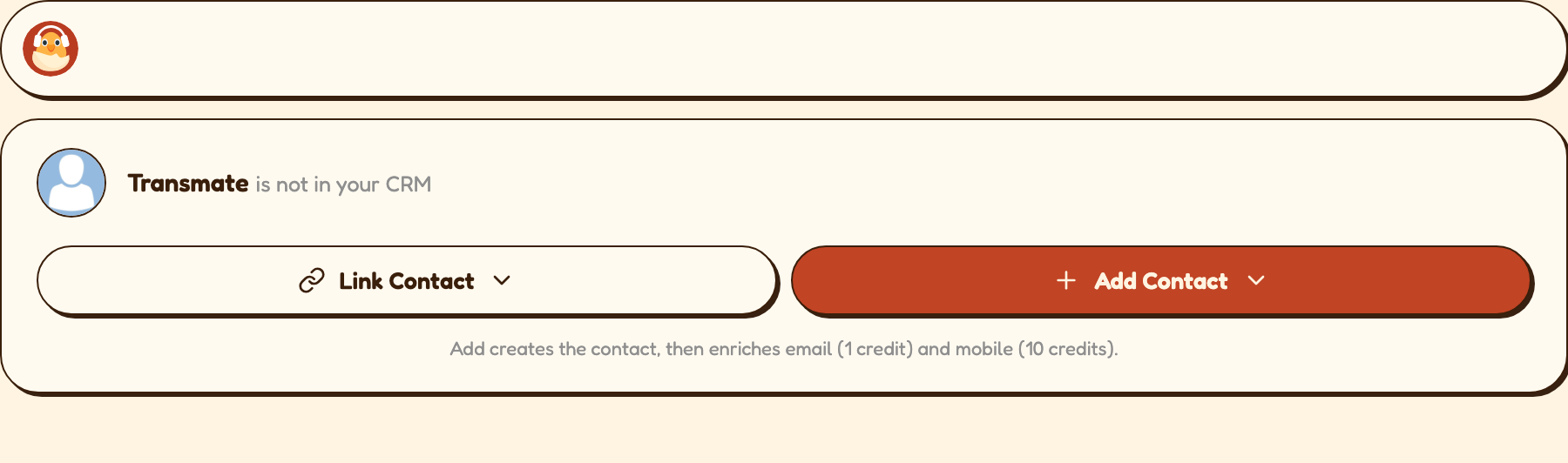
Add Contact creates a new HubSpot contact from the profile. The hint under it spells out what happens next: add creates the contact, then enriches email (1 credit) and mobile (10 credits).
Link Contact connects the profile to a contact that already exists in HubSpot. Use this one whenever there is any chance the person is already in your CRM under a different spelling, because it is how you avoid duplicates.
If they have more than one current role
Plenty of people list two or three current positions. SurroundR asks rather than guessing: "[Name] has more than one current role. Pick the role and company to send to HubSpot." Choose the one you are actually selling to.
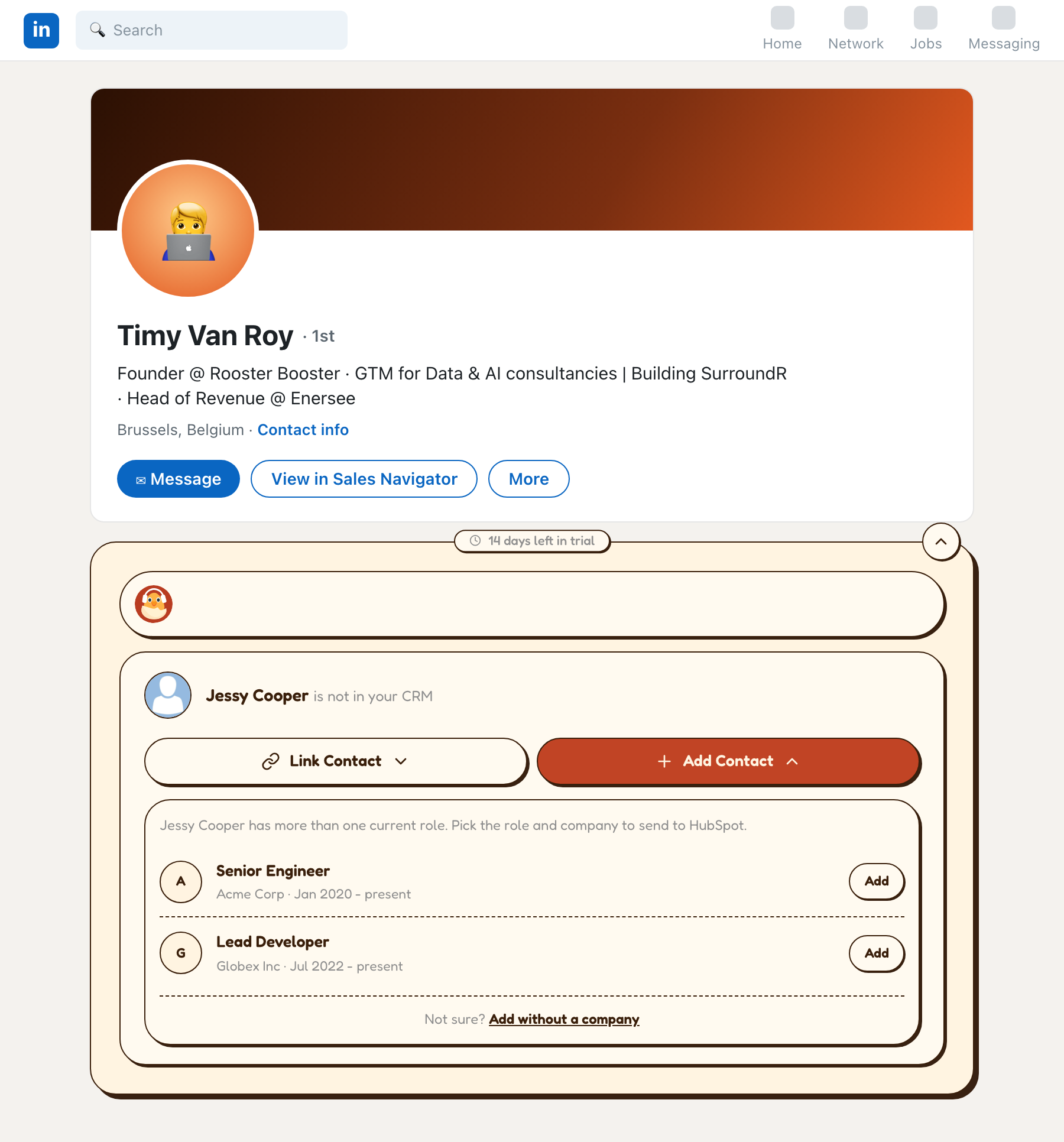
If none of them is right, or the profile lists a role you do not want in your CRM, use Add without a company. The contact is created and you can link the right company later.
Linking to an existing contact
Click Link Contact and type a name. The list shows matching HubSpot contacts with their company, so you can tell two people with the same name apart, and it tells you how many matched. If nobody matches, create the contact from the same place instead.
Updating a contact you already have
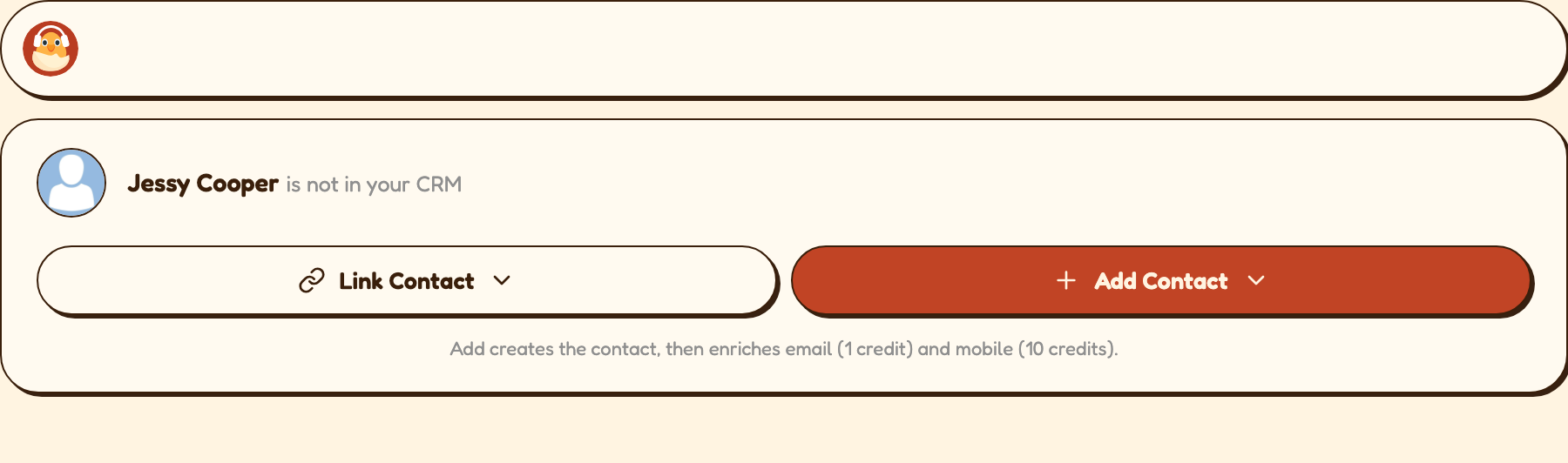
Update contact pushes what LinkedIn now says onto the HubSpot record: a new job title, a move to a different company, a changed location. It is the fastest way to keep a CRM honest, because you are already on the profile that proves the change.
If the contact has no company linked and the profile lists several roles, the update pauses and asks which company to associate first, under "No company is linked to this contact yet". Pick one, or use Update without a company, or Cancel update and come back to it.

Companies
When a contact has no company, the panel says "No company linked to [Name] yet" and offers the same two-way choice:
Link Company connects an existing HubSpot company.
Add Company creates it in HubSpot and associates it.
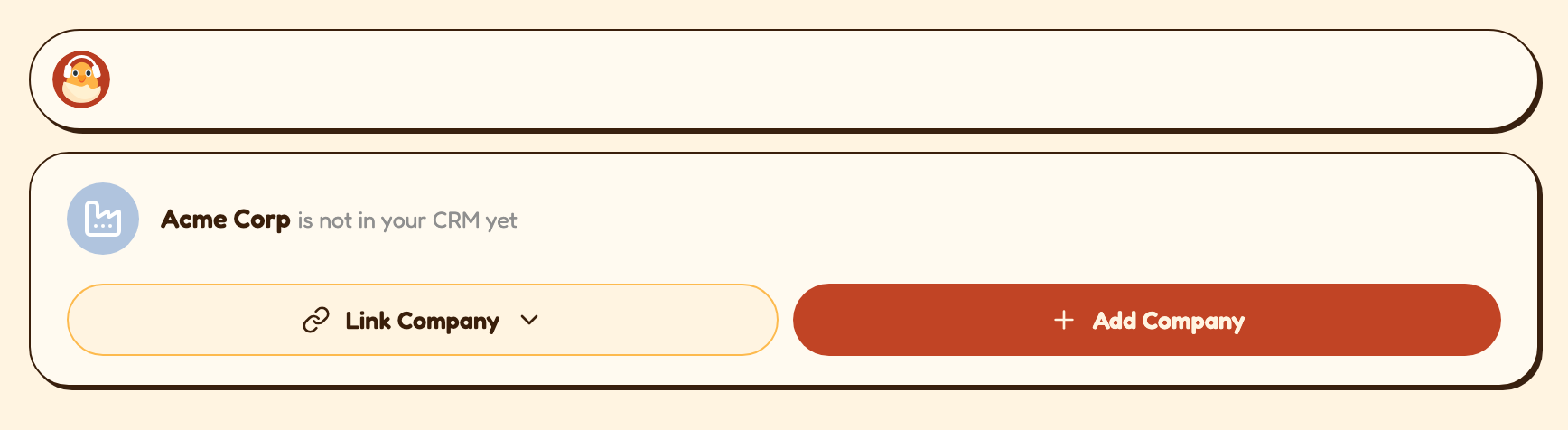
Prefer Link when in doubt. Duplicate companies are more annoying to clean up than duplicate contacts, because they take associations, deals and owners with them.
To detach one, use Unlink company. SurroundR confirms first and is explicit about what happens: this unlinks the LinkedIn page from that company in HubSpot, nothing is deleted, and you can link a different one.
Wrong person attached
Use Not this person in the panel header. The confirmation band says exactly what it will do: this unlinks the LinkedIn profile from that contact in HubSpot, nothing is deleted, and you can link a different contact. After that the panel is back to Add or Link.
The step-by-step version, including what to check so the same mismatch does not come back, is in Wrong contact showing on a LinkedIn profile? Here's how to relink it.
Additional properties
The panel shows a deliberately short list of fields. Additional properties is where you add the ones your team needs on a profile: a territory, a source, a custom qualification field.
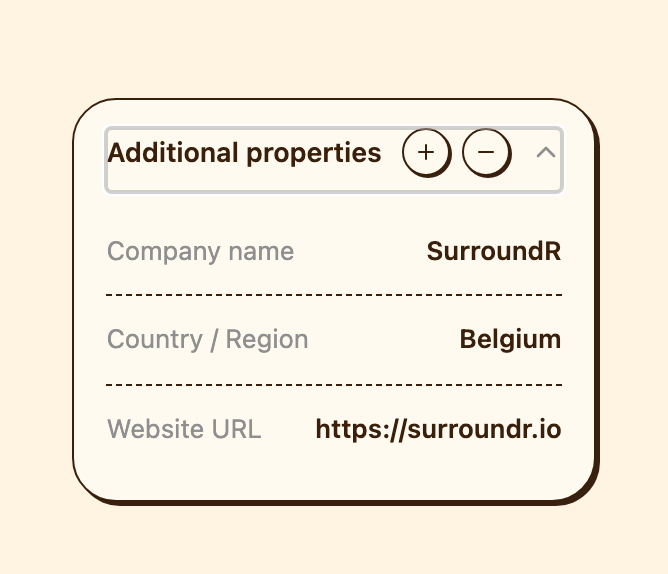
Add a property and it appears in the panel from then on.
Hide one and SurroundR is clear about the consequence: it no longer shows in this panel, and its value in HubSpot is untouched. Hiding is about your view, not your data.
Edit a value here and it is written to HubSpot, with a confirmation naming the property that changed.
Keep the list short. The panel earns its place by being scannable in two seconds, and a panel with twenty fields is just HubSpot in a smaller window.
Starting a sequence
Start sequence lists your HubSpot sequences, searchable, and enrols the contact in the one you pick. Once enrolled, the panel shows In sequence with the name.
Enrolment is validated by HubSpot, not by SurroundR, so when it refuses you get HubSpot's reason: no connected inbox, already enrolled in another sequence, opted out of marketing email, or the contact could not be found. Why is my HubSpot sequence enrollment failing? covers each one.
Good to know
Every write goes through your field mapping, which also decides whether a field is filled only when empty or overwritten. See How does field mapping work in SurroundR?
All fields known means there is nothing left to look up. Some of those values came from HubSpot rather than from us; if one is wrong, flag it with the thumbs-down and the replacement lookup is free.
Adding and updating are account-wide actions. The contact belongs to the account, and your teammates see it immediately.
A dashed button cannot be pressed right now. Hover it and the panel tells you why.