Finding and organising Chirps
Search, outcome filters, account-wide folders, bulk actions, and who is allowed to rename or delete a Chirp.
Written By Philip Poppe
Last updated 10 days ago
Once your team has recorded a few dozen Chirps, finding one matters as much as making it. The Chirps page in the web app is where that happens.
Find a Chirp
Search matches the Chirp title, the person who recorded it, and the name of the contact it was sent to. So "Van Dijk" finds the Chirp you sent her without you remembering what you called it.
Filter by outcome narrows to Sent, Viewed or Replied. See Sharing a Chirp and seeing who watched it for what those mean.
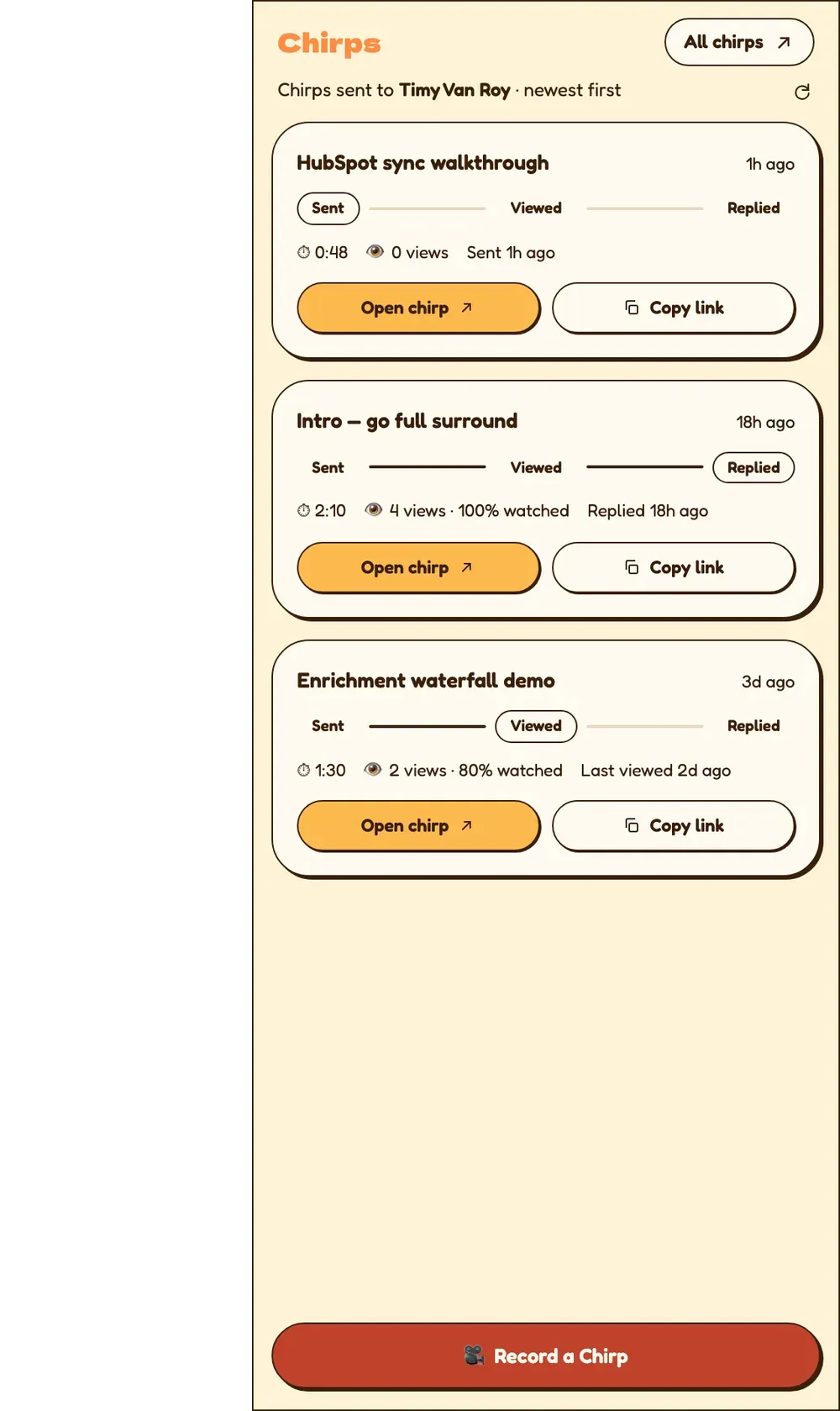
Each card shows the recipient as to Name and company, the length, the views, and how far the person got.

Folders
Folders are account-wide labels, not private ones. Anything you file is filed for the whole team, which is the point: new joiners can see how your best people open a conversation.
To create one, click New folder and give it a name, for example "Intro to logistics" or "Post-demo follow-up". To file Chirps, select them and use the move action.
The most useful way to organise is by the moment in the conversation rather than by person or month, because that is how someone looks for one: "what do we send after a demo goes quiet".
Working with several at once
Select Chirps with their checkboxes and an action bar appears:
Share
Move into a folder, or out of one
Archive, to get them out of the main list without destroying anything
Delete
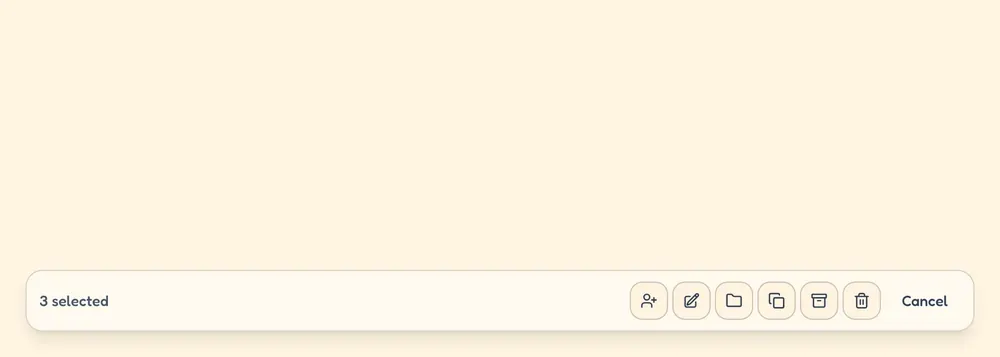
Archive and Delete both ask for confirmation first. Reach for Archive unless you actually want the link dead.
Renaming
Open the Chirp and click its title to edit it in place. Only the person who recorded it can rename it. The Rename button in the multi-select bar is not active yet.
Deleting
Only the person who recorded a Chirp can delete it. Deleting is permanent and breaks the public link, so anyone you already sent it to gets a dead page. If your reason is tidiness rather than a mistake, archive instead.
Good to know
Everyone on the account sees all Chirps. There is no private Chirp.
Folders are shared account-wide, so agree a couple of names with the team before everyone invents their own.
A Chirp can sit in one folder at a time.
The extension's Chirps tab shows only the Chirps tied to the contact or company whose page you are on, which is the fastest way to check what a colleague has already sent someone before you reach out.