The SurroundR panel on LinkedIn: what everything does
A tour of the panel: where it appears, the Contact, Company and Deals tabs, the action rail, collapsing it, and what a dashed control means.
Written By Philip Poppe
Last updated 10 days ago
Almost everything SurroundR does happens inside LinkedIn, in a panel that appears on the page you are already looking at. This article is a tour of it. If you are looking for a specific job, see Adding, linking and updating contacts from LinkedIn and SurroundR in LinkedIn messages and Sales Navigator.
Where the panel appears
A LinkedIn profile, and a company page.
LinkedIn messages, both the full messaging page and the small chat windows at the bottom of the screen.
Sales Navigator lead pages, account pages and messaging.
Search results and lists, on LinkedIn and in Sales Navigator, where people already in your CRM are marked so you can see at a glance who is new.
There is also a side panel, the taller one that opens beside LinkedIn, with your Home, Profile, Tasks, Chirps, Arena, Support and Settings. Same data, more room. The in-page panel is for acting on the person in front of you; the side panel is for working through your day.
The profile panel, top to bottom
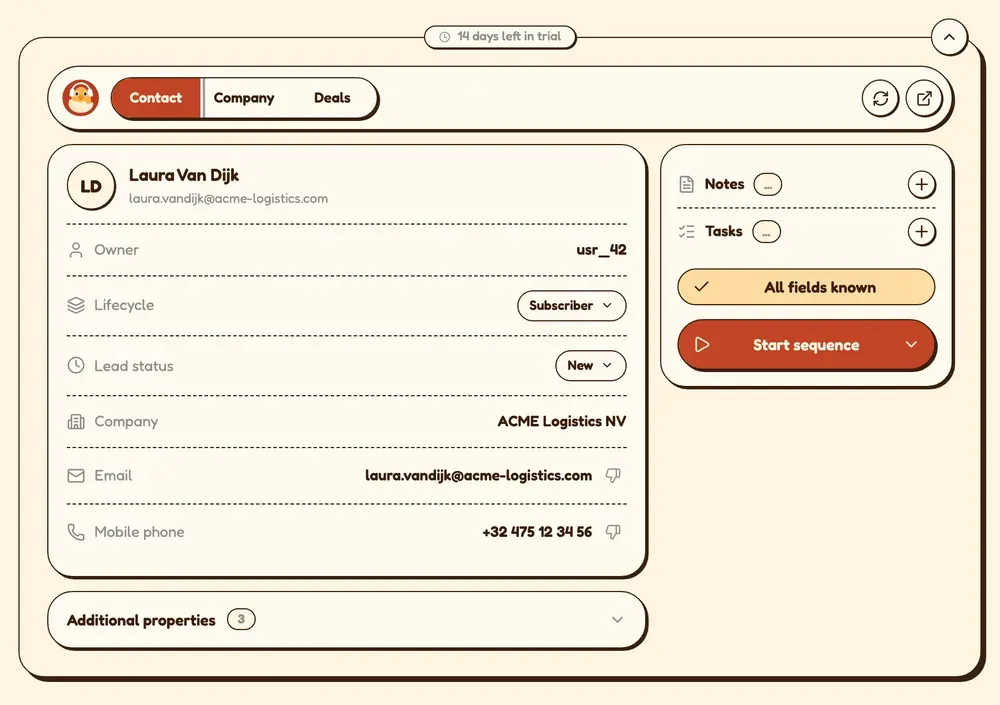
The header bar carries three tabs, Contact, Company and Deals, plus two icons on the right: refresh, to re-read the profile and your CRM, and Open in HubSpot, which jumps straight to the record.
The contact card shows what is on the HubSpot record: owner, lifecycle stage, lead status, company, email and mobile phone. Lifecycle stage and lead status are editable in place, so moving someone to a new stage does not need a trip to HubSpot.
The right-hand rail is where you act:
Notes and Tasks, with a count and a plus to add one.
Enrich contact, labelled with what the lookup will cost. See What is enrichment, and what does it cost in credits?
Start sequence, to enrol the contact in a HubSpot sequence.
Additional properties sits at the bottom, collapsed. That is where you put the handful of HubSpot fields your team actually needs on a profile without cluttering the panel for everyone else.
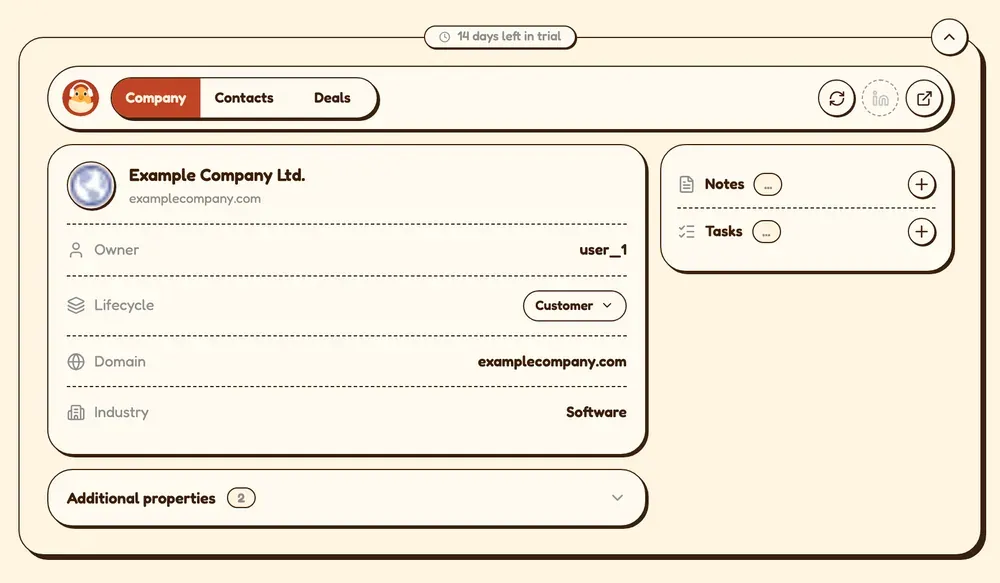
The Company tab
The company on the record, with its details and an Associated contacts list. That list is the quiet gem of the panel: before you reach out, you can see who else at that company is already in your CRM, and who owns them, which stops two of your people arriving at the same account in the same week.
The Deals tab
Open deals for this contact or company, with the total value and sorted by close date. Deals created in HubSpot appear here automatically, and each one opens in HubSpot in a click. If there are a lot, search them.
SurroundR does not create deals. It shows you the ones that exist, at the moment you are talking to the person.
Collapsing it
The chevron at the top right folds the panel into a slim bar, so you can read the profile without SurroundR in the way. Click the bar to bring it back. The choice sticks as you move between profiles.
Dashed means you cannot press it
A control with a dashed border is switched off right now, and hovering over it tells you why rather than just refusing. For example, Open in HubSpot is dashed on a profile that has not been synced yet, with the reason "this person is not synced to HubSpot yet".
It is a small convention, but once you know it you stop clicking things that cannot work, and the panel becomes readable at a glance.
If the panel is not there
You see "You've been signed out". Sign in again from the panel. Your CRM data keeps syncing once you do.
Nothing appears at all. Check that Enable LinkedIn injection is on under Settings, on the Account settings tab. It is your own preference, not an account-wide one, so a colleague seeing the panel does not mean yours is on.
It appeared, then vanished after LinkedIn re-rendered. Reload the page. If a reload is genuinely required, SurroundR shows a banner saying so.
You just updated the extension. Reload the LinkedIn tab so the new version takes over.
Good to know
Everything the panel writes goes through your field mapping, so if a value lands on the wrong HubSpot property, that is where to fix it.
The panel reads your CRM. It does not copy it. Closing SurroundR changes nothing in HubSpot.
What you see is what your teammates see. Notes, tasks and owners are the account's, not yours alone.