What is a Chirp and how do I record one?
Record a short screen-and-voice video for one prospect, from a LinkedIn profile or the web app, and what happens to it after you stop.
Written By Philip Poppe
Last updated 10 days ago
A Chirp is a short screen recording with your voice over it, sent to one prospect. They open a link and watch it in the browser. No account, no download, no plugin. It is the closest thing to being in the room with someone, which is why it gets replies where a written follow-up does not.
Where to start one
From a LinkedIn profile. Open the SurroundR panel and use Record a Chirp in the footer. This is the one to use for prospecting, because the Chirp is linked to that person's CRM contact automatically.
From the Chirps tab in the side panel, while you are on a profile or a company page.
From the web app. Go to Chirps and click New chirp.
What gets recorded
Your screen and your microphone. There is no webcam picture in the corner, by design: the point is what you are showing them, and a talking head halves the space you have to show it in.
Before you start, pick the microphone you want from the recorder bar. If you have a headset plugged in, check that it is the one selected, because this is where most silent Chirps come from.
Recording
After a short countdown, the recorder bar appears with a REC indicator and a running timer:
Pause and resume, if you need a moment to find a tab or collect a thought.
Stop to finish and start the upload.
Discard to throw the take away. Under about three seconds it goes immediately. Longer than that and SurroundR asks "Discard this Chirp?" with Keep recording and Discard recording, so a misclick cannot delete real work.
Do not aim for perfect. A two-minute Chirp with one stumble in it lands better than a polished one that took four takes, and the person watching has no idea what your second attempt would have sounded like.
After you stop
The recording uploads and then goes through processing, which converts it into a format that plays everywhere and builds the preview image. You do not need to keep the tab open or wait on the page. A Chirp moves through three states:
Uploaded, on its way to us.
Processing, being converted. Short Chirps are usually done well inside a minute.
Ready, playable and shareable.
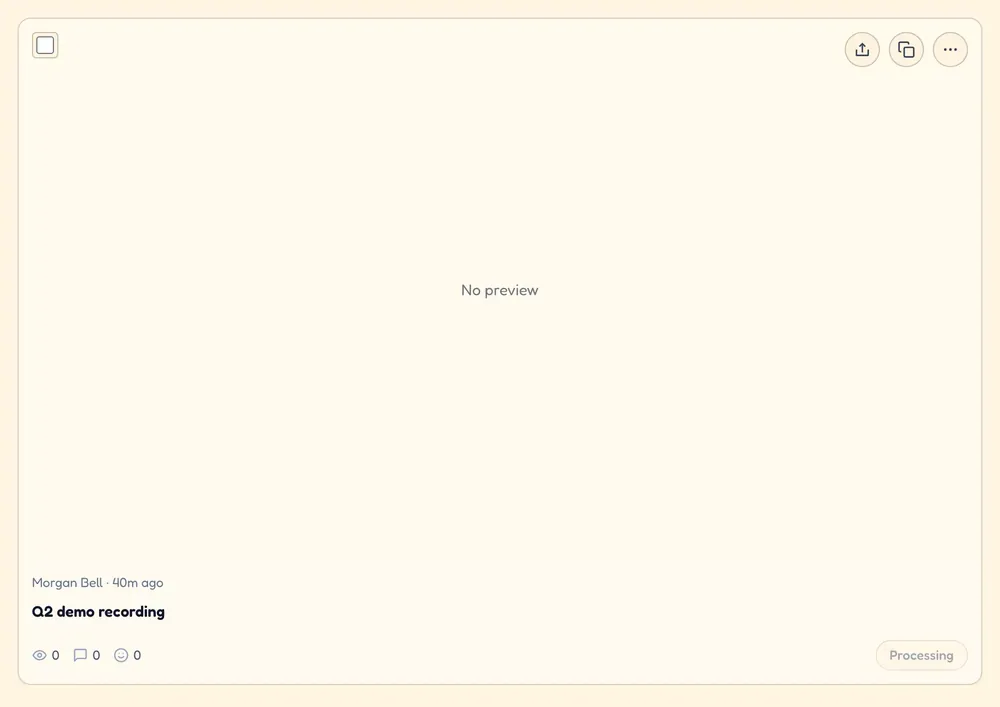
Sharing stays locked until processing finishes, because a link shared too early shows a broken preview in LinkedIn or Slack, and those previews get cached. It is worth the extra few seconds.
Linking a Chirp to a contact
When you record from a LinkedIn profile or a message thread, SurroundR links the Chirp to that CRM contact for you. That link is what makes the tracking useful: views are attributed to a person, not just counted, so Chirps can tell you that this prospect watched to the end.
If you recorded from the web app, or you want to add a second recipient, open Share and use the Contacts tab to search your CRM. See Sharing a Chirp and seeing who watched it.
Give it a name
Open the Chirp and click its title to edit it in place. The title is what the recipient sees in the browser tab and in link previews, so "Quick thought on your Q3 hiring plan" beats the default every time. Only the person who recorded it can rename it.
Reporting a bug with a Chirp
The recorder does double duty. From the Support tab in the side panel you can record what went wrong instead of describing it, and it reaches us as a support ticket with the page and technical details attached. It is by far the fastest way to get a bug fixed, because we see exactly what you saw.
When something goes wrong
The Chirp has no sound. Almost always the wrong microphone, or the browser never got permission. Check the mic selector in the recorder bar before your next take, and check that Chrome has microphone access for the site.
It is stuck in processing. Give it a couple of minutes, then reload the Chirps page. Processing runs on our side and picks itself up after a hiccup. If a Chirp sits in processing for more than about ten minutes, or shows as failed, send us the link through the in-app chat.
You cannot share it yet. The preview is still rendering. Wait for the Chirp to show as ready.
It will not play on a phone. Newer Chirps play on mobile. A few older recordings only exist in a format iOS refuses, and those need to be watched on a desktop.
Good to know
Chirps live on your SurroundR account, not on the person's LinkedIn thread. Deleting the LinkedIn message does not delete the Chirp, and deleting the Chirp breaks its public link for anyone you already sent it to.
Only the person who recorded a Chirp can rename or delete it. Everyone on the account can see and share it.
Recording does not spend enrichment credits. Chirps and enrichment are unrelated.
Keep them short. Under two minutes is the sweet spot for a first touch.