SurroundR in LinkedIn messages and Sales Navigator
Conversation sync and its per-contact toggle, group chats, lead and account pages, seeing who is already in your CRM in a list, and bulk export.
Written By Philip Poppe
Last updated 10 days ago
SurroundR follows you into LinkedIn's messaging and into Sales Navigator, with the same panel and a few extras that only make sense in a conversation or a list.
In a conversation
Open a LinkedIn message thread, on the messaging page or in one of the small chat windows, and the panel appears with the contact for that thread. The footer is where the conversation-specific actions live:
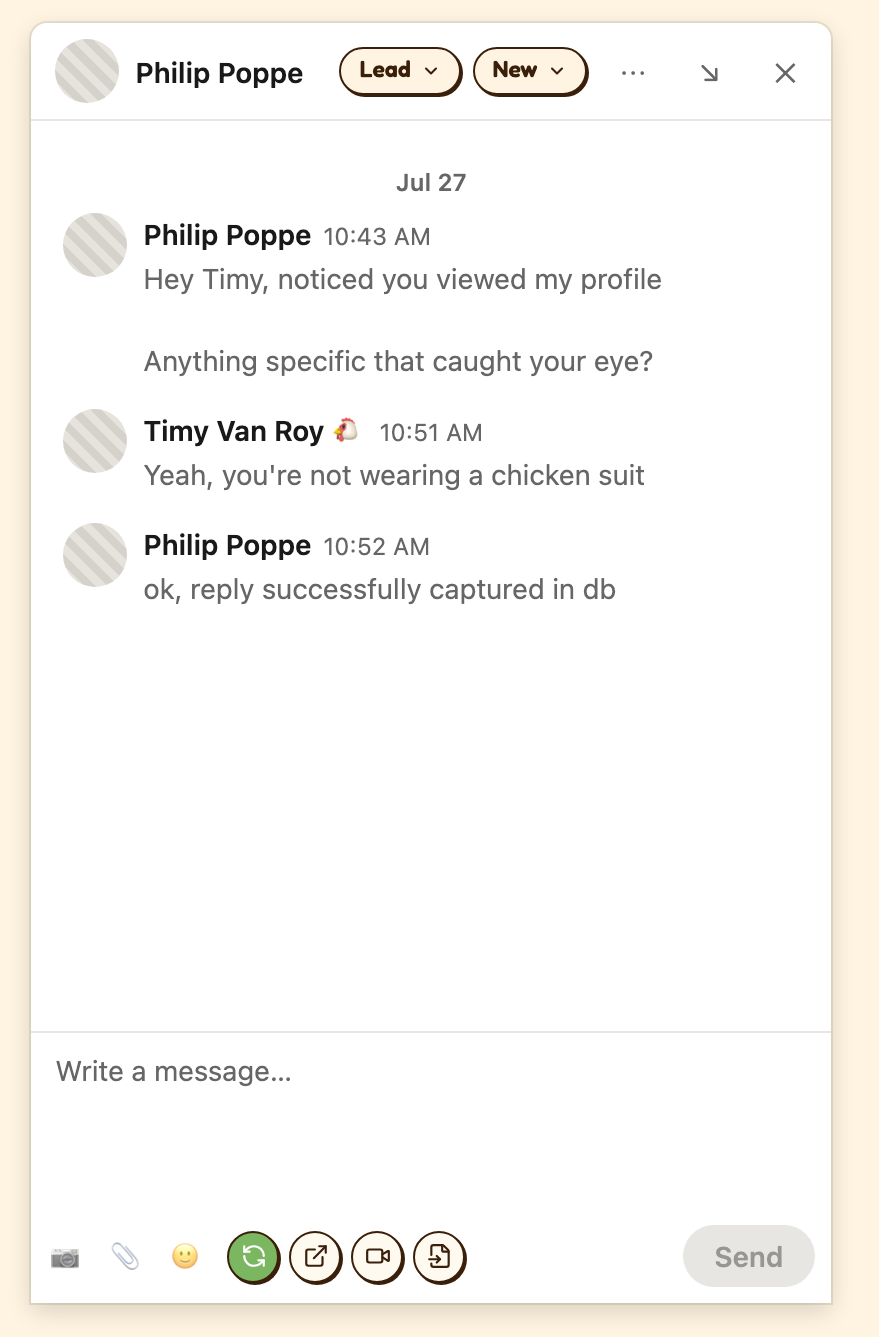
Add contact, if they are not in your CRM yet.
Select template, to drop one of your saved message templates into the reply box.
Record a Chirp, to answer with a short video instead of another paragraph.
Sync conversation, and an auto-sync toggle.
Getting LinkedIn messages into HubSpot
SurroundR can copy a LinkedIn conversation onto the HubSpot contact, so the thread is visible to whoever picks up the account next instead of living in one person's inbox.
The footer tells you where the thread stands: Conversation is fully synced, a count of new messages waiting, or Sync failed with a retry.
Auto-sync, per contact
The toggle in the footer controls auto-sync for this contact. Click it and the panel tells you which way you are going: auto-sync is on, click to turn it off, and the reverse.
There is also an account-wide switch in Settings. When that is off, the per-contact toggle is off everywhere and says so, so you are never left wondering why nothing syncs. See What are the General settings in SurroundR?
Turning it off for one contact
SurroundR asks what to do with what is already there:
Keep synced messages, leaving the history on the HubSpot record.
Remove from HubSpot, which deletes the messages you synced. The dialog counts them first and is explicit that it deletes messages from your own conversation only, and that teammates' synced messages are never touched.
A small caveat it will tell you about: messages synced before this feature existed cannot be attributed to a person, so those are kept.
Group chats
Auto-sync and Open in HubSpot are not available in group conversations, and the panel says so rather than failing quietly. A group thread has several people in it and no single contact to file it against.
Sales Navigator
Lead pages and account pages get the same panel as LinkedIn profiles and company pages, with the same add, link, update and enrich actions. Messaging inside Sales Navigator works the same way as LinkedIn messaging.
The panel also knows which product you are in, so its links take you to the matching page rather than dumping you on the other side of LinkedIn.
Lists: seeing who you already have
In a people or company search, in a saved list, and on the "Get introduced" cards on a lead page, SurroundR marks the rows that are already in your CRM: "[Name] is already in your CRM".
This is the fastest qualification pass there is. Run your search, and the unmarked rows are the ones worth your attention.
Exporting a list to your CRM
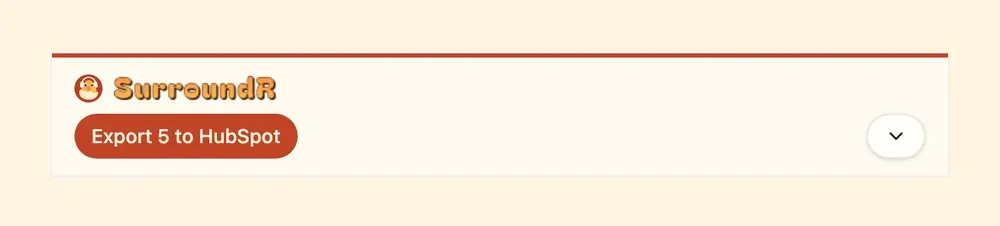
On a Sales Navigator list, a banner offers Export leads from this list (or accounts). Select the rows you want, or select all, and export them straight to HubSpot. You can also export to a file.
Two things to keep an eye on:
Your export allowance. The banner shows what is left in the current window, as remaining out of quota. It depends on your plan.
Credits. Exported contacts are enriched, which spends credits per contact found. With an empty balance the export still runs and the contacts are still created, just without enriched details. See What is enrichment, and what does it cost in credits?
Export in bulk when you are confident about the list. A hundred half-relevant contacts cost real credits and make your CRM worse, and the point of SurroundR is the opposite of volume.
Good to know
Syncing a conversation copies messages to HubSpot. It does not send anything and does not touch the thread on LinkedIn.
Auto-sync only covers conversations you are part of. It cannot see your teammates' threads.
The Sync only new messages setting decides whether old history is included. It is on by default so your CRM does not fill up with years of small talk.
Templates are for LinkedIn messages and InMails. For a video, record a Chirp instead.