What can I change in Settings?
The two tabs on the General settings page, what each switch does, which ones affect your whole team, and which ones spend credits.
Written By Philip Poppe
Last updated 10 days ago
Settings is where you decide how SurroundR behaves for you and for your team. This article covers the General page. The other pages have their own articles, linked at the end.
Two tabs
Open Settings in the web app and the General page has two tabs: Account settings and Enrich settings. Everything saves the moment you flip it. There is no save button.
Read the badges first
Two small labels tell you the consequence of a switch before you touch it:
Affects whole team. This one is account-wide. Turning it off turns it off for everybody, not just you.
Uses credits. Turning this on lets SurroundR spend enrichment credits when it runs.
A row with neither badge is yours alone. Your colleagues keep their own choice, so you can hide something you find noisy without imposing that on the team.
Some rows depend on another
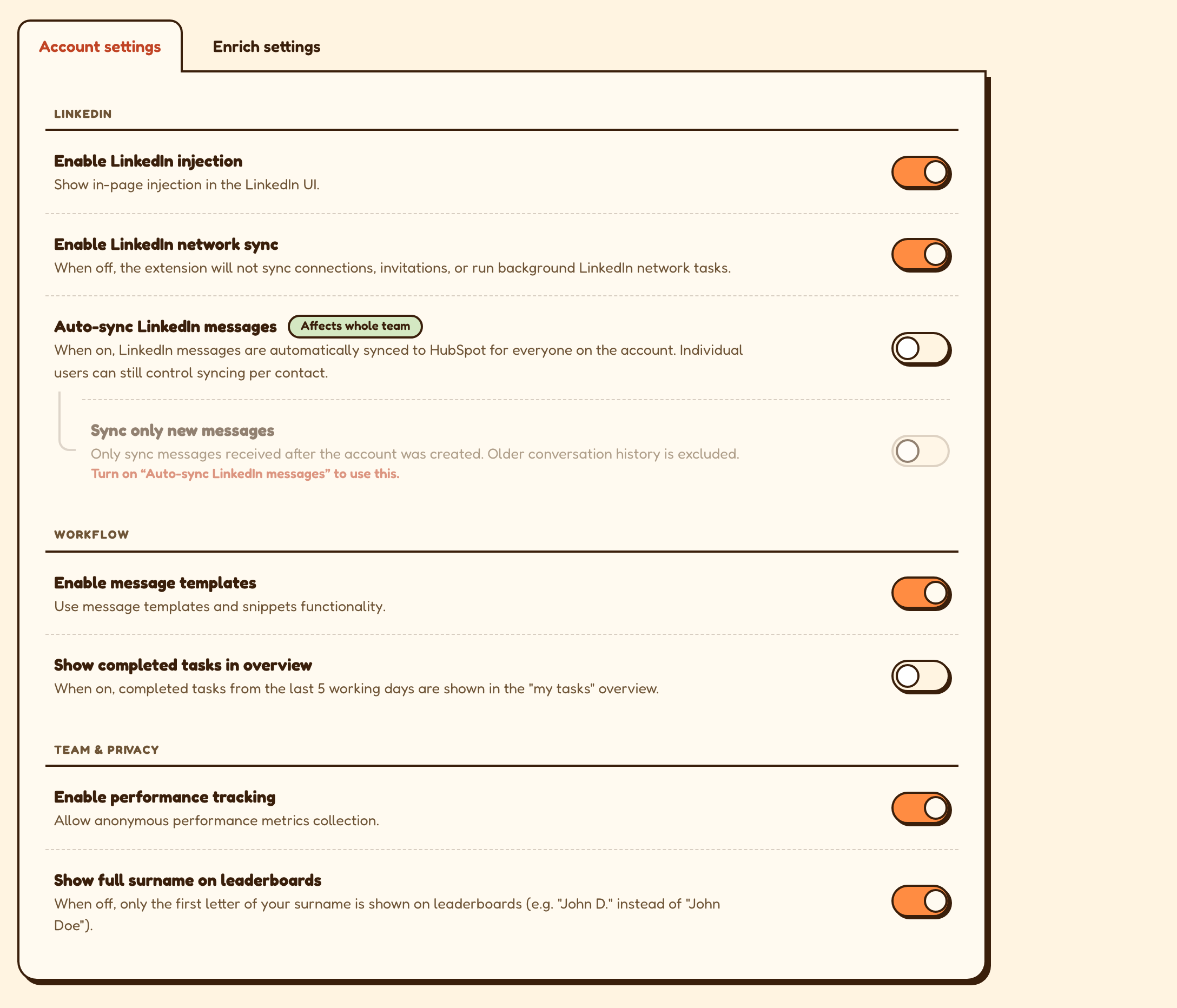
A setting that only makes sense while another one is on is shown as an indented child. When the parent is off, the child is dimmed and cannot be moved, and it tells you what to switch on: Turn on "[parent]" to use this.
That is why Sync only new messages sits under Auto-sync LinkedIn messages, and why Find emails and Find mobile numbers sit under Auto-enrich contact.
ENDIMG_2
Account settings
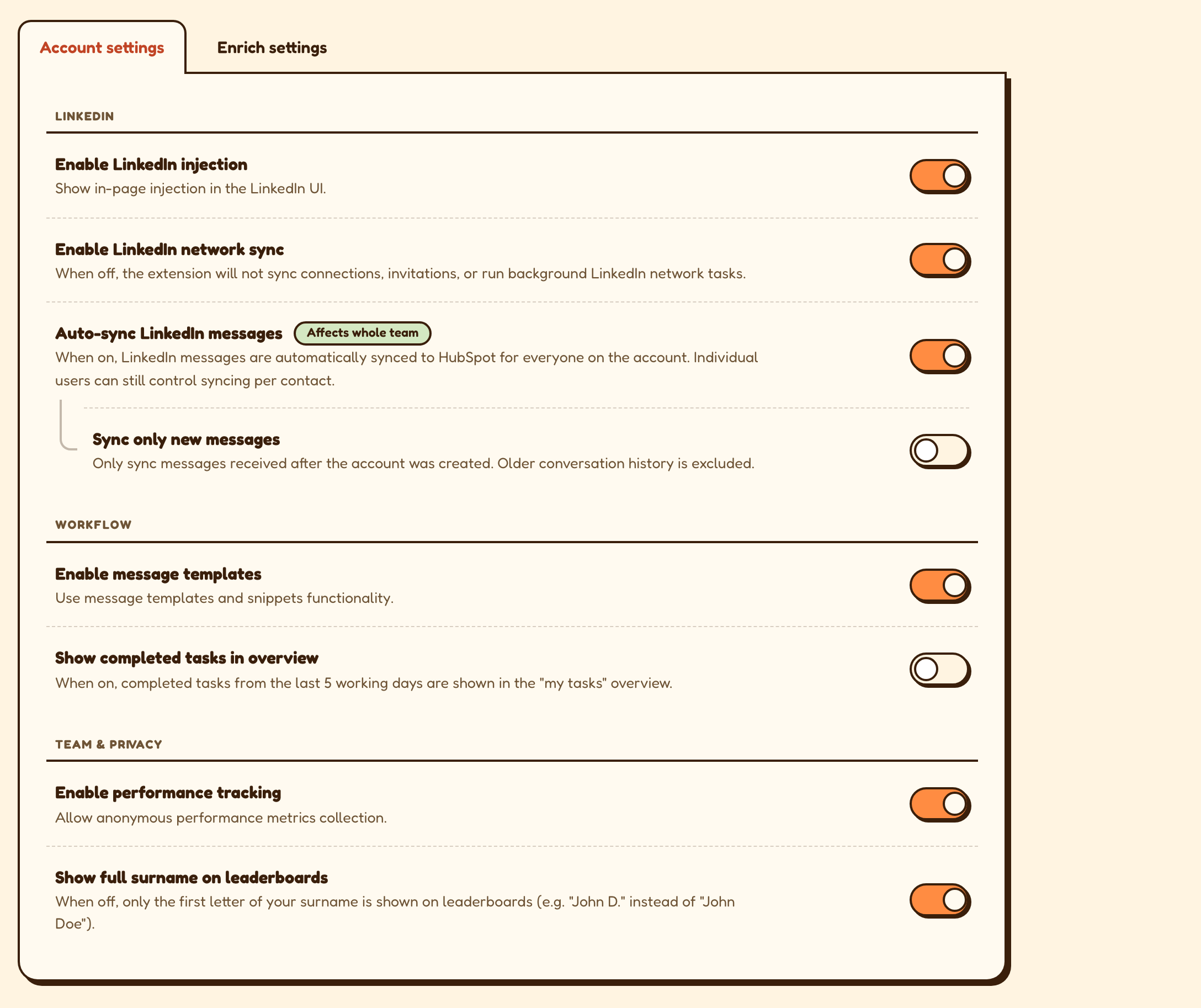
Enable LinkedIn injection shows the SurroundR panel inside LinkedIn. With this off, LinkedIn looks untouched and you lose the panel entirely, so leave it on unless you have a reason.
Enable LinkedIn network sync lets the extension sync your connections and invitations and run its background LinkedIn tasks. Off means no network sync at all.
Auto-sync LinkedIn messages (affects whole team) copies LinkedIn conversations onto the HubSpot contact automatically. Individual users can still turn syncing on or off per contact. See SurroundR in LinkedIn messages and Sales Navigator.
Sync only new messages limits syncing to messages received after the account was created, so years of old small talk stay out of your CRM.
Workflow
Enable message templates turns on templates and snippets. See How do I create and manage message templates in SurroundR?
Show completed tasks in overview keeps the tasks you finished in the last five working days visible in your task overview, instead of clearing them out of sight.
Team and privacy
Enable performance tracking allows anonymous performance metrics. It helps us find what is slow. Nothing about your contacts is in it.
Show full surname on leaderboards. With it off you appear as "John D." rather than "John Doe". Your own choice, nobody else's.
Enrich settings
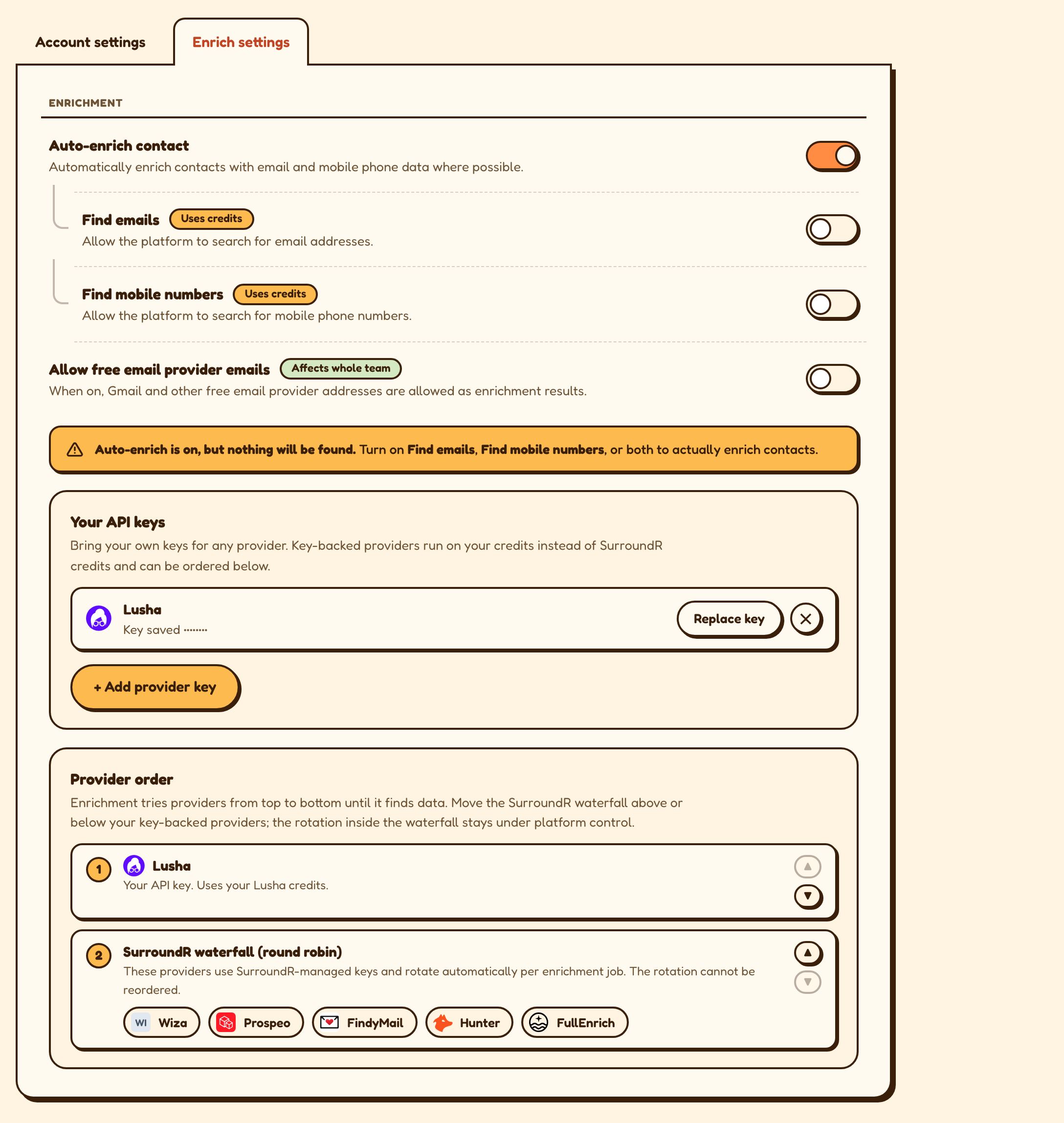
Auto-enrich contact enriches every contact your team adds, in the background.
Find emails and Find mobile numbers (both use credits) decide which channels SurroundR is allowed to look for. Turning off mobile is the simplest way to keep credit use predictable, since a mobile number costs ten credits against one for an email.
Allow free email provider emails (affects whole team) decides whether a Gmail or Outlook address counts as a valid result. Off by default, so you only get business addresses.
The same tab holds Your API keys and Provider order, both admin only. See Use your own enrichment provider keys.
The warning worth not ignoring
Turn on auto-enrich but leave both channels off and the page tells you plainly: "Auto-enrich is on, but nothing will be found." Turn on Find emails, Find mobile numbers, or both. It is an easy state to end up in when someone switches mobile off to save credits, and without the warning it looks like enrichment is broken.
Settings your plan does not include
A row your plan does not cover stays visible but cannot be switched, and clicking it explains what would unlock it. Nothing is hidden from you, so you can see what a higher plan would give you before deciding.
The same settings in the extension
A handful of these also appear in the extension's own Settings tab, so you can change them without leaving LinkedIn: message templates, LinkedIn injection, LinkedIn network sync, sync only new messages, and allow free email provider emails. It is the same setting in both places, not a copy.
The other Settings pages
Field mapping (admin only). See How does field mapping work in SurroundR?
Default values (admin only). See How do I set default values in SurroundR?
Message templates. See How do I create and manage message templates in SurroundR?
Billing (admin only).
Good to know
Changes take effect immediately. There is nothing to save and nothing to publish.
Only the two rows badged Affects whole team change anything for your colleagues. Everything else, LinkedIn injection included, is your own preference: turning it off hides the panel for you and nobody else.
Roles decide who can reach the admin-only pages. See Your team: roles, invites and access.